Bitrix24 WhatsApp bot: build one that qualifies leads and hands over
A step-by-step guide to the Bitrix24 WhatsApp bot: plan the conversation, the blocks you will use, a complete worked example, the hand-off to your Open Channels team, WhatsApp's rules and a launch checklist.
On this page
- What the Bitrix24 WhatsApp bot is
- Plan the conversation before you draw it
- The blocks you will use
- A worked example: an appointment enquiry
- Choosing when a scenario starts
- Handing over to your team in Bitrix24
- WhatsApp’s rules, applied for you
- Draft, test, publish
- A launch checklist
- Getting help from a Bitrix24 partner
- What it needs
Most WhatsApp enquiries a Bitrix24 team receives start the same way: a greeting, a question somebody has answered a hundred times, and a customer who would like an answer now — often at an hour when nobody is at their desk. A Bitrix24 WhatsApp bot takes that first part of the conversation: it greets, offers choices, asks for the details your team needs, checks them, and hands the customer to a person once a person is actually useful.
This guide walks through building one in the ChatBridge24 app for Bitrix24: planning the conversation, the blocks you will use, a complete worked example, how the bot hands over to your Open Channels team, and the checks to run before you switch it on.
What the Bitrix24 WhatsApp bot is
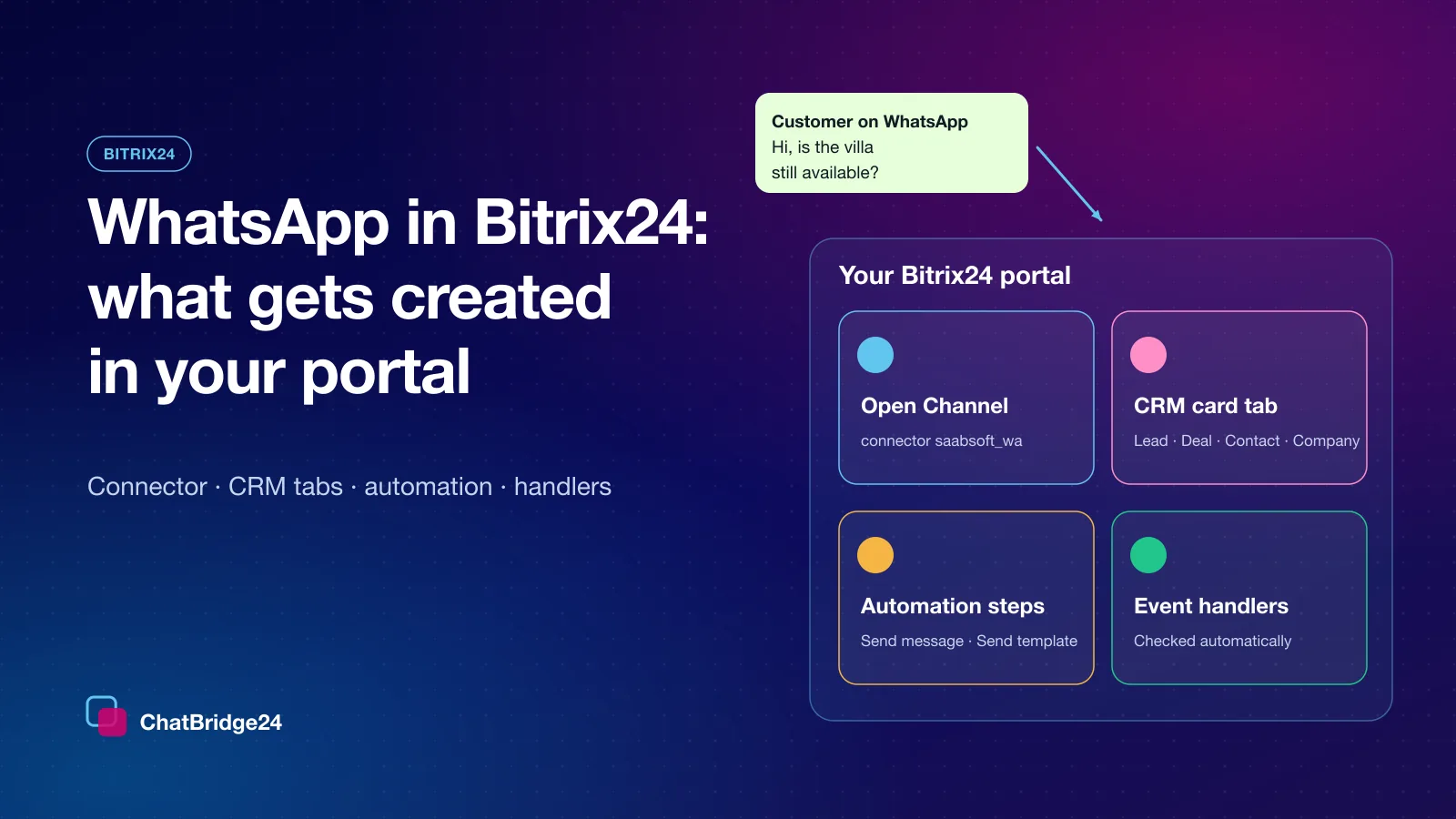
The Bitrix24 WhatsApp bot is the scenario builder inside the ChatBridge24 app on the Bitrix24 Marketplace. It is on the Bot tab of each number connected to the WhatsApp Business API, and it is the same builder the standalone workspace uses — so the scenario your team draws in Bitrix24 behaves exactly as described on the WhatsApp chatbot page.
Three things it is not, so expectations are right from the start:
- It does not invent replies. Every message it sends is one you wrote in a block. Nothing is generated by AI.
- It does not start conversations. A scenario starts when a customer writes or taps a button. To reach somebody who has not written to you, you send a template or run a campaign.
- It does not compete with your operators. A scenario does not start on a conversation one of your team has answered in the last 24 hours — whether they answered in Open Channels, in a CRM record’s WhatsApp tab or in the ChatBridge24 inbox.
Plan the conversation before you draw it
The bots that work are short. Before opening the builder, write down three things on paper:
- What the customer usually wants. Look at last month’s chats. Three or four reasons usually cover most of them — prices, opening hours, booking, an existing order.
- What your team needs to know before answering. A name, a date, a branch, a budget. Ask only for what somebody will actually use.
- Where a person takes over. Every path should end either with a complete answer or with a hand-off. A path that ends nowhere is the one customers complain about.
The blocks you will use
| Group | Blocks | What they are for |
|---|---|---|
| Messages | Send message, Send template, Send file or media | Text with up to three buttons or a list of up to ten options, a link, a location request; a picture or document above it; an approved template once the window has closed |
| Ask | Ask a question, Buttons menu, List menu | Questions whose answer is checked: a number, an email, a phone number, a date, a location, a file, a yes or no, or text of a set length |
| Logic | Condition, Business hours, Set variable, Wait, Go to block | Different paths by answer, country, label, new contact, ad, day or hour; open and closed by your working hours and holidays |
| Flow | Start another scenario, Hand to a person, End | Continue in another scenario, give the conversation to your team, or finish |
Every answer is saved under a name you choose, so a later message can greet somebody by the name they just typed or repeat the date they picked.
A worked example: an appointment enquiry
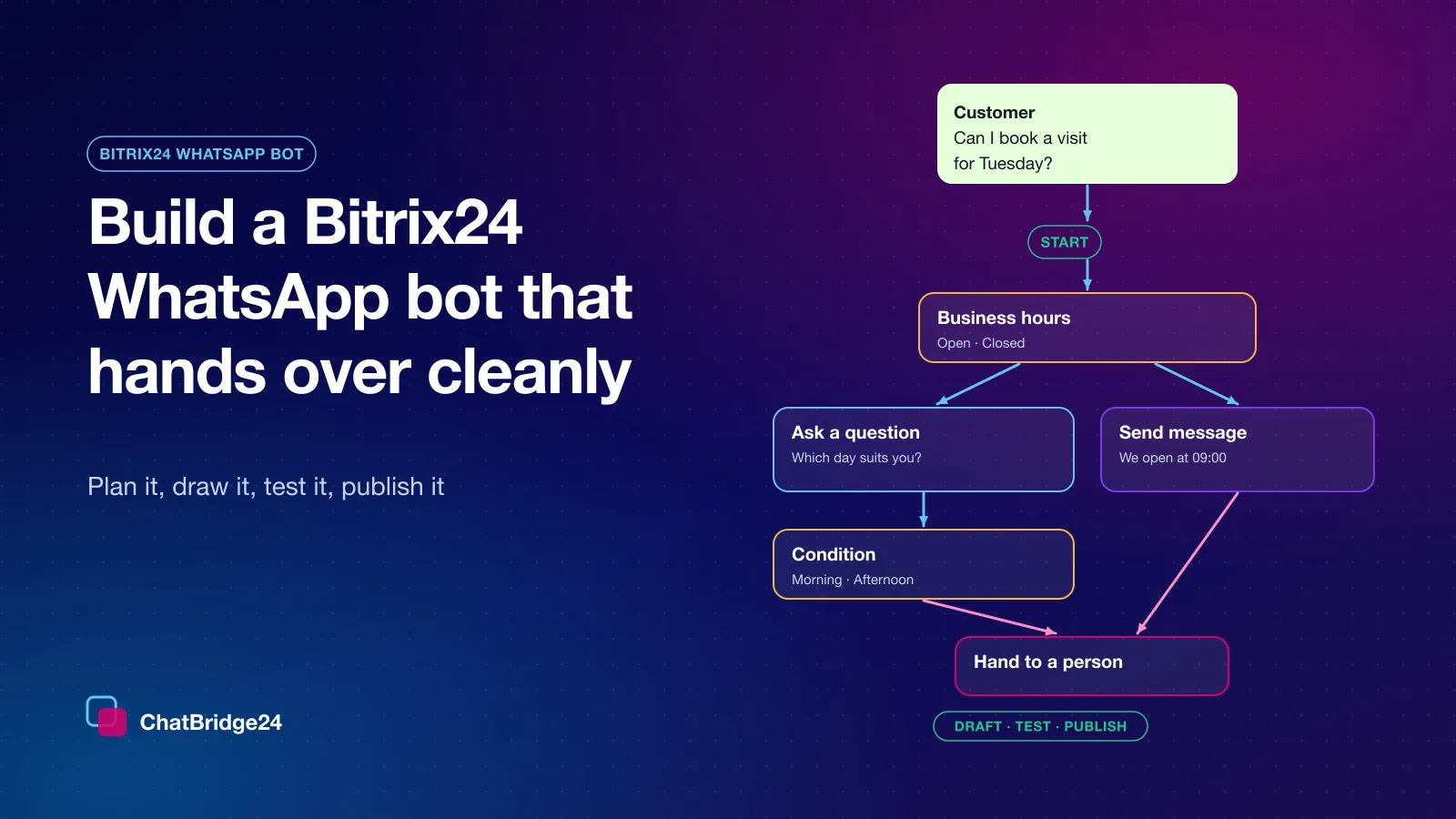
Here is a complete scenario for an invented dental clinic that receives booking requests on WhatsApp. It takes about twenty minutes to draw.
- Start — on any message from a new contact.
- Business hours — Open goes to step 3; Closed goes to a Send message block that says when the clinic opens, and then continues to step 3 anyway, so the request is captured overnight.
- Send message — “Hello! How can we help?” with three buttons: Book a visit, Prices, Something else.
- Book a visit → Ask a question — “What is your name?”, saved as name.
- Ask a question — “Which day suits you?”, checked as a date. A wrong answer is asked again in your own words; no reply for an hour sends a gentle reminder.
- Ask a question — “Morning or afternoon?” as a Buttons menu.
- Send message — “Thank you, Sara. A colleague will confirm your visit on Tuesday.” — with the name and the day filled in from the saved answers — and then Hand to a person.
- Prices → Send file or media — the price list as a document, then Go to block back to the three buttons of step 3.
- Something else → Hand to a person straight away.
On every question, connect the Asked for a person path to the hand-off too. A customer who types “agent” or “human” instead of answering then reaches your team at once instead of being asked the same question again.
Choosing when a scenario starts
One number can run several scenarios at the same time, each with its own start, in the order you give them. A scenario can start on:
- a keyword the customer writes, such as price or booking;
- the first message from a new contact;
- a chat that came from a click-to-WhatsApp ad or a landing-page campaign;
- a tap on a button in one of your templates;
- a message that arrives outside working hours;
- or any message, for the scenario that greets everybody.
A scenario can also be limited to once per contact in a number of hours, or kept away from conversations that carry a label you choose — useful for keeping VIP customers away from automated greetings.
Handing over to your team in Bitrix24
The Hand to a person block is where the bot stops. After it, the bot does not re-enter that conversation; it belongs to your team. In Bitrix24 that is the moment your usual routine takes over: when the number is bound to an Open Channel, the chat is in that Open Channels queue, and an operator can also open it from the WhatsApp tab on the customer’s CRM record.
Because every answer was saved, the operator does not start from zero. The conversation already shows the customer’s name, the date they asked for and the choice they made.
WhatsApp’s rules, applied for you
A bot on a live business number has to respect WhatsApp’s own rules. The builder applies them block by block:
- The 24-hour customer service window. A free-form message is sent only while the window the customer opened is still open. Once it has closed, only an approved template is sent — which is why a Send message block can name a template to fall back on. Templates are written and approved under WhatsApp message templates.
- Opt-outs and blocked contacts. A customer who asked not to be contacted, or a contact your team blocked, never hears from the bot.
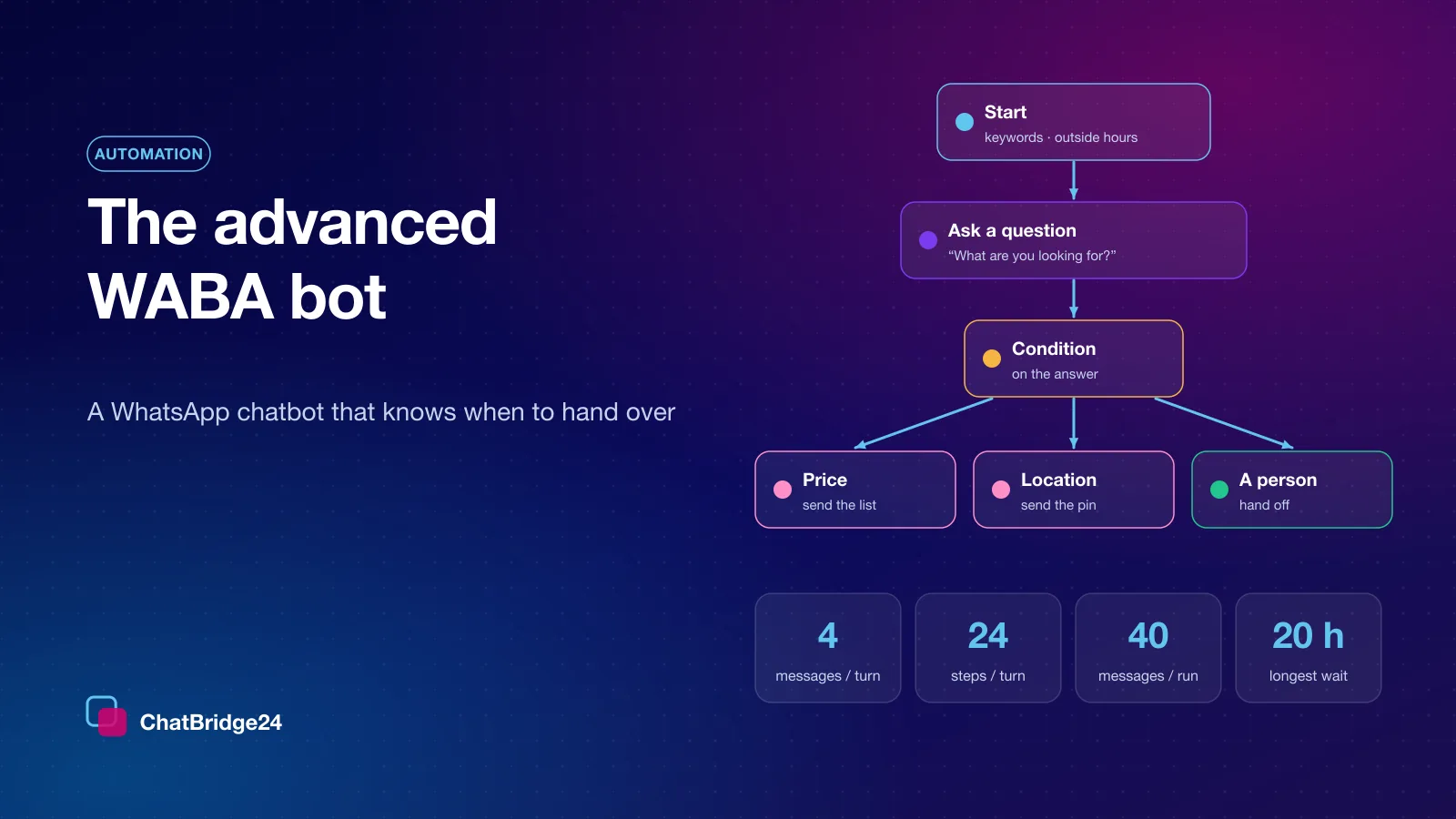
- Limits on every run. At most four messages for each customer message and forty each time a scenario runs, and a loop that would keep sending without waiting for the customer is refused before it is published.
- One reply, never two. When two customer messages arrive together, only one of them moves the conversation on, and no block ever sends the same message twice.
Draft, test, publish
Nothing reaches a customer until you publish and switch the scenario on.
- Build it as a draft. Saving keeps a draft; the version customers meet does not change.
- Try it in the Test chat. Write to the scenario as a customer would. The Test chat follows the same rules as the live bot, shows which block answered and what each answer saved, and sends nothing to WhatsApp.
- Publish when the checks pass. Publishing checks the whole scenario — an unconnected path, a sending loop, a template that is not approved — and names the block to fix.
A customer already in the middle of a conversation finishes it on the version they started, and every published version is kept, so last week’s version can be brought back as the draft if a change did not work out.
A launch checklist
- Every path ends in a complete answer or a hand-off.
- Every question has its No reply and Asked for a person paths connected.
- The closed-hours message states when you open, in the customer’s language.
- A template is named for messages that may be sent after the 24-hour window.
- The scenario was walked end to end in the Test chat, including a wrong answer and a silence.
- Your Open Channels operators know which conversations the bot hands over, and what it has already asked.
Getting help from a Bitrix24 partner
You can draw every scenario in this guide yourself. If you would rather have it designed with you, ChatBridge24 is built by Saabsoft, an official Bitrix24 Dubai partner that specialises in CRM implementation and customisation. Saabsoft can set up the bot together with your Open Channels routing and your CRM pipelines, so the hand-off lands with the right team from the first conversation. Businesses elsewhere in the Emirates can find the same Bitrix24 UAE implementation services on Saabsoft’s site.
What it needs
The bot works on numbers connected to the WhatsApp Business API and is included in the Professional and Enterprise plans, priced per connected number with your whole team included — see ChatBridge24 pricing. Meta’s own per-message charges apply to what the bot sends, exactly as they apply to messages your team sends; most of a bot’s replies are free-form messages inside the 24-hour window, which Meta counts as service messages. The detail is on WhatsApp Business API pricing.
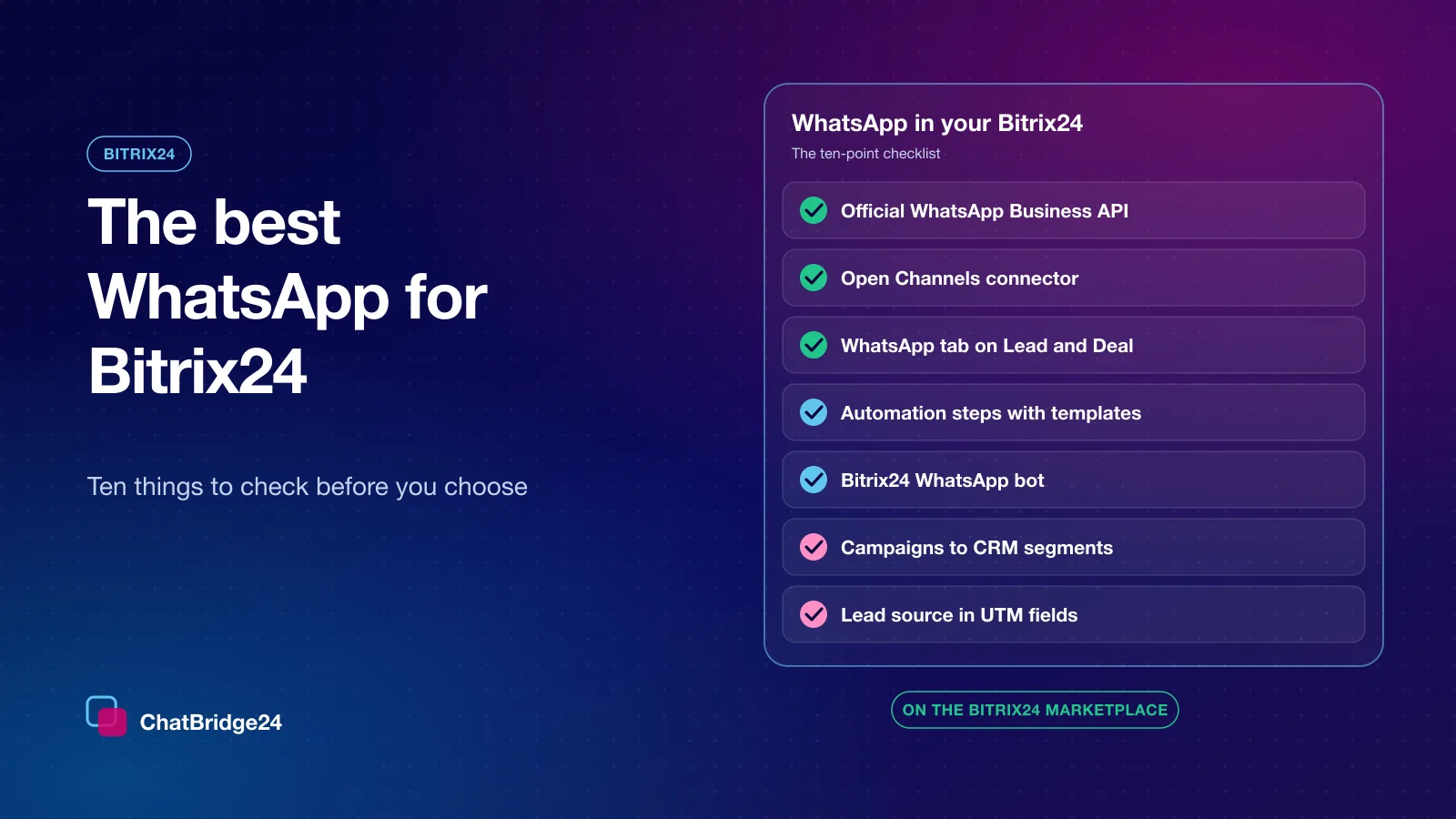
If you are still choosing how to bring WhatsApp into Bitrix24 at all, start with our checklist, the best WhatsApp for Bitrix24. And for a deeper look at triggers, limits and transcripts, read how an advanced WABA bot answers fast and hands over cleanly.
Common questions
Does Bitrix24 have a WhatsApp bot?
The ChatBridge24 app on the Bitrix24 Marketplace includes a scenario builder for numbers connected to the WhatsApp Business API, on the Bot tab of each number. You draw the conversation, test it and publish it inside Bitrix24.
Can the bot hand a customer over to an operator?
Yes. A Hand to a person block stops the bot and leaves the conversation to your team, and a customer who writes a word such as agent or human can be sent straight to it.
Will the bot reply when my team is already talking to the customer?
No. A scenario does not start on a conversation one of your team has answered in the last 24 hours, in Open Channels, in a CRM record's WhatsApp tab or in the ChatBridge24 inbox.
Which plans include the Bitrix24 WhatsApp bot?
The Professional and Enterprise plans, on numbers connected to the WhatsApp Business API.