WhatsApp chatbot for business: how an advanced WABA bot answers fast and hands over cleanly
A WhatsApp chatbot is worth having for the repeated first question, and it should step aside after it. How to draw a scenario that answers in seconds, test it before it goes live and hand the conversation to a person.
On this page
A WhatsApp chatbot earns its place in the first minute of a conversation and loses it in the second. The first minute is the repeated question — where are you, what does it cost, is it still available, can somebody call me — and a bot that answers those in seconds is worth having. The second minute is the real question, and a bot that keeps talking through it costs you the customer.
This guide is about building the first kind without drifting into the second: what a scenario should do, where it must stop, and the limits that keep an advanced WABA bot from becoming an expensive monologue.
What a scenario is, and what it is not
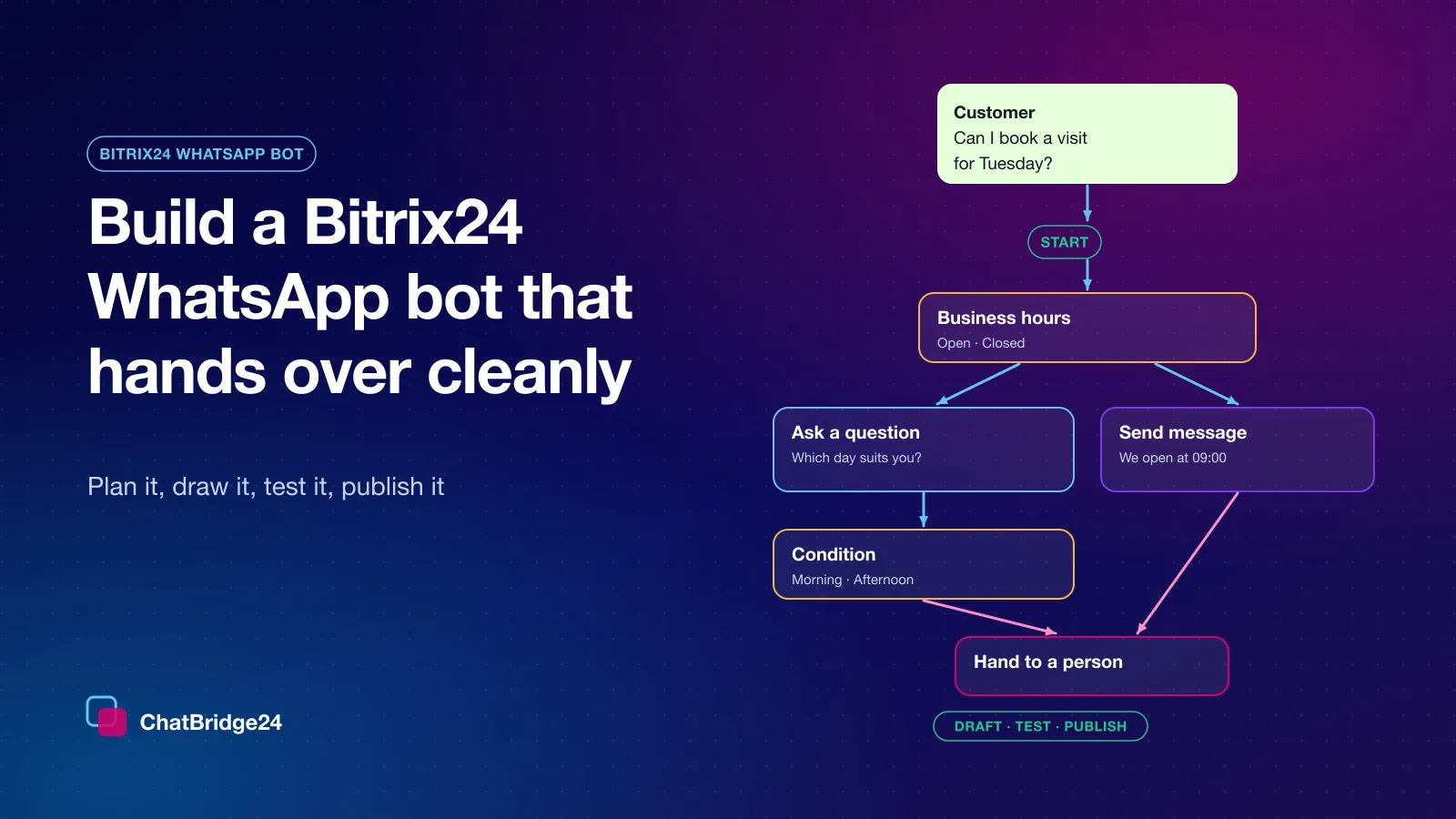
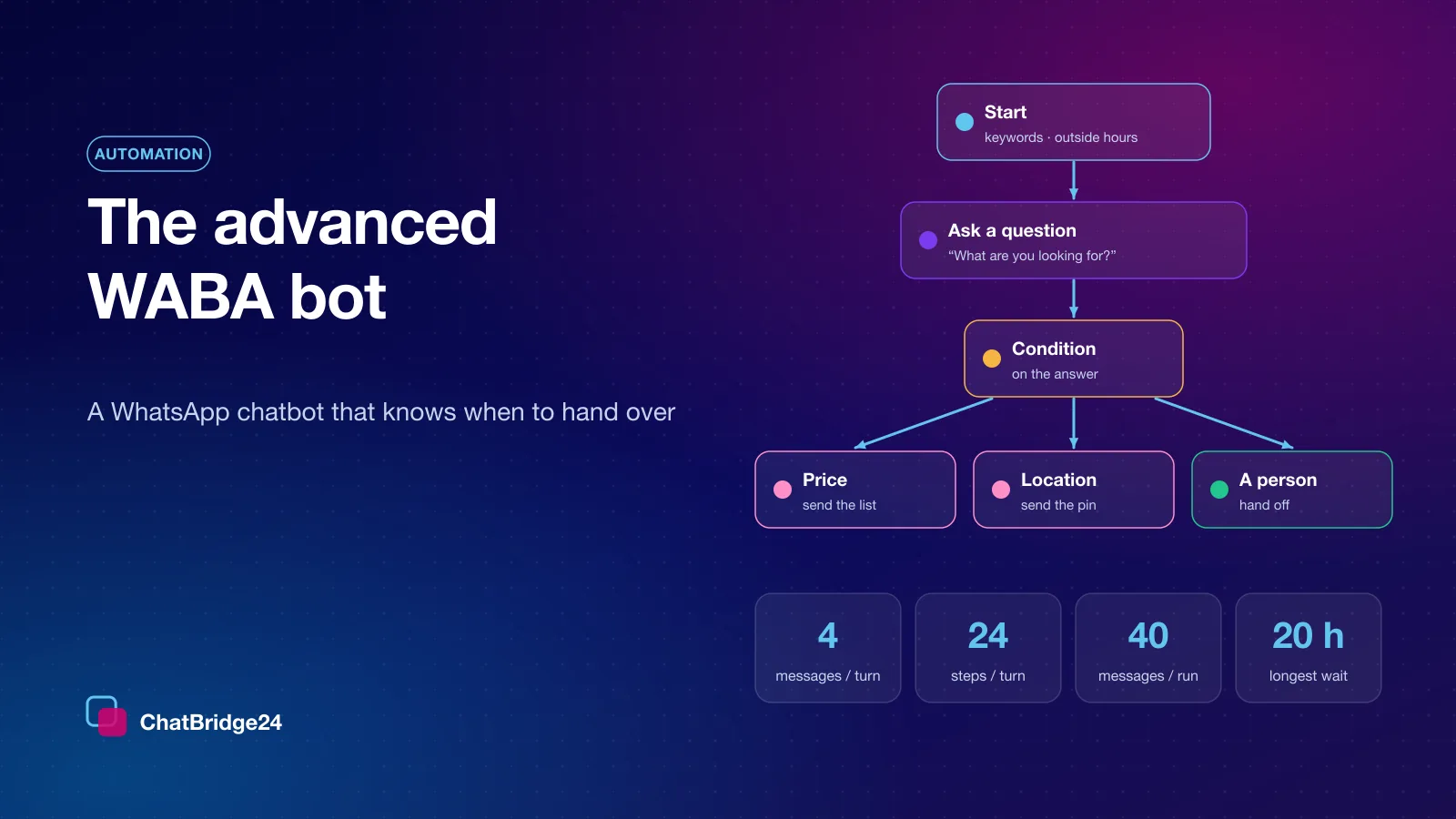
A scenario is a drawn flow, not a script and not a language model left to improvise. You place blocks on a canvas and connect them: send a message, ask a question, branch on the answer, wait, hand off to a person. Each block does one thing, which is what makes a scenario readable by the colleague who inherits it six months later — and every word it sends is one you wrote, or one the customer gave you.
That shape matters because WhatsApp is a channel where every outbound message can be billed and every reply lands on somebody’s phone. A free-form bot that “keeps the conversation going” is optimising for the wrong thing. A scenario that answers, asks one question, and gets out of the way is optimising for the customer.
The blocks, in four groups
The builder’s library groups its blocks the way you will reach for them.
Messages. Send message sends text with an optional header — a title, an image, a video or a document — and, if you want, up to three reply buttons, a list of up to ten options, a link button or a request for the customer’s location. Each button can lead down its own path. Send template sends one of your approved templates with its values filled in. Send file or media sends an image, a video, an audio clip or a document, uploaded once and reused. Ask for location asks the customer to share a pin.
Ask. Ask a question sends the question and then waits. The scenario does not move until the customer answers, so it cannot spin while nobody is talking. The answer is checked against the type you chose — text, a number, an email address, a phone number, a date, a choice, a location, a file or a yes or no — and saved in a variable you name. A wrong answer is asked again in your words, a silence can get a reminder, and no reply at all can take its own path. Buttons menu and List menu are questions answered by choosing one of your options, and each option can have its own path; a customer who types an option’s name or its number instead of tapping is matched to it.
Logic. Condition sends the conversation down one of several paths, each with up to ten rules — what the customer wrote, an answer they gave, their country, a label, the day or the hour — and an Else path for everything else. Business hours branches on your working hours and holidays. Set variable stores or calculates a value for a later message. Wait pauses for minutes or hours, or until your team is next open. Go to block jumps to another block.
Flow. Start another scenario hands the conversation to another scenario on the same number. Hand to a person stops the bot and leaves the conversation in the WhatsApp shared inbox for whoever is on duty. End closes the scenario for that conversation.
A handed-off thread is never re-entered by the bot. That rule is the whole point of the hand-off block.
Triggers: when a scenario starts
A scenario starts from its Start block, and the Start block is where you decide who it is for. It can start when a customer writes one of your keywords, on the first message from a new contact, on a chat that came from a click-to-WhatsApp ad or a landing-page campaign, when a customer taps a button on one of your templates, on any message while your team is closed — or on any other message, for the scenario that greets everybody. Four details decide whether it starts at the right moment.
- Keywords. “price” is a good trigger for a pricing answer; “hi” is a trigger for everything, which means it is a trigger for nothing. Keywords match whole words in any letter case, so hi does not fire on a message that merely contains this. A keyword can also be set to match only a message that is exactly the keyword, or one that starts with it.
- While the team is closed. This is where a bot is most welcome, because the alternative is silence until morning. Say when a person will reply, then hand off so the thread is waiting in the inbox when the team arrives.
- Once per contact. A scenario can be limited to once per contact in a number of hours, which stops a customer re-triggering the same greeting every time they write — the way a well-meant welcome becomes a loop.
- Never over a person. A scenario does not start on a conversation a colleague is already handling. If someone on your team has replied from the ChatBridge24 inbox or a CRM record’s WhatsApp tab within the last 24 hours, the bot stays out of it. Contacts who opted out, and contacts you blocked, never get a scenario at all.
One number can run several scenarios, in the order you give them, and a specific trigger always wins over “any message”. So a price enquiry, a lead from an advert and an after-hours message can each get the conversation written for them.
A short menu is a fine opening — three or four options. A twelve-item menu on a phone screen is not a menu, it is homework.
The limits, and why each one exists
A drawn loop is a bill, not a hang. So the engine enforces limits that no drawing can override:
| Limit | Value | What it prevents |
|---|---|---|
| Messages sent in one turn | 4 | A single “hello” answered with a paragraph of messages, each one charged |
| Steps in one turn | 24 | A loop of conditions that sends nothing but never stops |
| Messages sent in one run | 40 | A menu that returns to itself being walked for ever |
| Steps in one run | 400 | A long conversation that goes round and round without ending |
| Jumps in one run | 10 | Two blocks or two scenarios passing a conversation back and forth |
| A single wait | 20 hours | A conversation parked past the point a free-text reply is still allowed |
A turn is what one customer message — or one timer — sets in motion. A run is each time a scenario runs for a customer, from its Start block to its end, including any scenario it hands the conversation on to. None of those numbers is a target. A scenario that ever reaches one of them is a scenario that needs redrawing, and a well-drawn one never comes close.
Draft, test, publish
Nothing reaches a customer until you publish it. Saving keeps a draft, and the version your customers meet does not change.
The Test chat lets you write to the scenario as a customer would. It follows the same rules as the live bot, shows which block answered and what each answer saved, and sends and charges nothing.
Publishing checks the whole scenario first and names the block to fix — a path left unconnected, or a loop that would send messages without ever waiting for the customer — and it will not publish while one of those is open. A customer already in the middle of a conversation finishes it on the version they started, and any earlier version can be restored.
The 24-hour window decides what a bot may say
WhatsApp lets a business reply in free text only within 24 hours of the customer’s last inbound message. Your own messages do not reopen that window. Outside it, the only thing you may send is an approved template — which is why a bot that tries to “follow up tomorrow” in free text simply fails.
If a scenario genuinely needs to reach someone after the window has closed, the right block is Send template: it sends one of your WhatsApp message templates, deliberately and billed as what it is. A Send message block can also be given an approved template to send instead when the window has closed; without one, the scenario ends there rather than sending free text. Read the current WhatsApp Business API pricing before you design any flow that depends on business-initiated messages.
Why an interruption must never send twice
A scenario can be interrupted — by a restart or a network failure — and a message that has been sent cannot be taken back. So the bot records that a block has run before that block sends.
The consequence is chosen rather than tolerated. If the bot is interrupted at that moment, one message is not sent; it is never sent twice, and you are never charged twice for it. Silence is the safe direction; a duplicate is not. Two messages arriving at the same moment cannot both move a conversation on either: while one of them is moving the scenario forward, the other does not run it a second time alongside.
A transcript for every run
When a customer says “your bot told me the wrong thing”, you need to see exactly which path it took and why. So the bot records every step it takes — which block ran, what it did and, at a question or a condition, the path it chose — and, when a run ends, why. The number’s Bot tab shows the latest of them under What the bot actually did. Debugging a scenario should be reading, not guessing.
A launch checklist
- Every path ends in an answer or a hand-off — none ends in silence.
- The greeting is one message, not three.
- Keywords are specific and tested against real messages from your inbox.
- The after-hours copy says when a person will reply.
- The scenario has been walked end to end in the Test chat, and the bot’s first live steps read the way you expected.
- The team knows that a handed-off thread is theirs and the bot will not come back.
Where this runs
Scenarios run on a number connected to the official WhatsApp Business API — the same number your team answers from. They are part of the Professional and Enterprise plans — the details are on ChatBridge24 pricing.
The builder is the same in the standalone WhatsApp workspace and in the ChatBridge24 app on the Bitrix24 Marketplace, where it is the Bitrix24 WhatsApp bot: built and run on each number’s Bot tab, without leaving Bitrix24. If you would rather see a scenario working before you draw your own, book a live demo.
Common questions
Can a WhatsApp chatbot message a customer after 24 hours?
Not in free text. Outside the 24-hour window that opens with the customer’s last message, a business may only send an approved template, so a bot that needs to follow up later must use one.
Will the bot reply on a conversation my team is already handling?
No. A scenario does not start on a conversation a person has replied to within the window, and a handed-off thread is never re-entered by the bot.
What stops a badly drawn scenario from sending too many messages?
Limits in the engine that no drawing can override: at most four messages and twenty-four steps for each customer message, and, each time a scenario runs, at most forty messages, four hundred steps and ten jumps, with no wait longer than twenty hours. Publishing also refuses a loop that would send without ever waiting for the customer.
Last updated 24 October 2026.