WhatsApp coexistence: keep the Business app and give your team the same number
Your number no longer has to choose between the WhatsApp Business app and the platform. How to connect it in about ten minutes, what arrives in the first 24 hours, what changes on the phone and the limits Meta sets.
On this page
- Why the old rule forced a choice
- What coexistence changes
- Before you start: a short checklist
- Connecting the number, step by step
- The first 24 hours: contacts and history
- What changes on the phone
- How the team works the number afterwards
- What it costs
- When a dedicated number is still the better choice
- A quick test after you connect
Most small businesses start on WhatsApp the same way: the WhatsApp Business app on one phone, the number printed on the shop sign, the website and every business card. It works well until the business grows past one pair of hands. Then the questions start — who answered that customer, why did nobody reply over the weekend, how do we send a reminder without typing it forty times — and the answer used to be uncomfortable: move the number off the app and onto the platform, or start again on a new number.
WhatsApp coexistence removes that choice. This guide explains what it is, how to connect a number in about ten minutes, what arrives in the first 24 hours, and the limits worth knowing before you press the button.
Why the old rule forced a choice
The WhatsApp Business app and the WhatsApp Business API were two separate homes for a number. The app lives on a phone and is built for one person. The platform lives on Meta’s servers and is built for software: several colleagues answering at once, approved templates, campaigns, automation and integrations.
Until recently a number could be registered in one home or the other, never both. Moving a well-known number onto the platform meant giving up the app on the phone, and many owners — rightly attached to the way they already work with their customers — decided not to. They kept the app and lived with its limits.
What coexistence changes
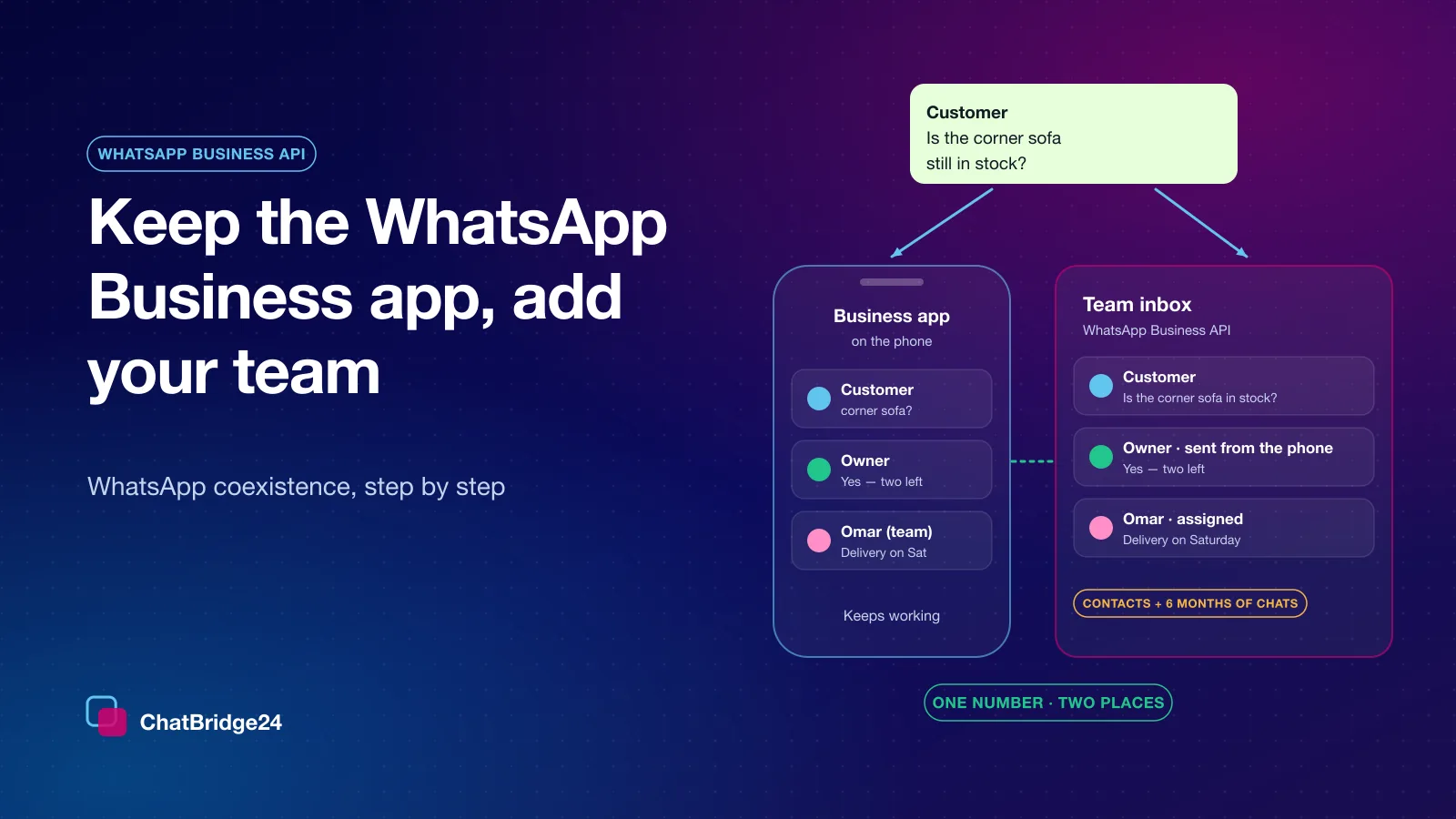
With coexistence the number stays on the WhatsApp Business app and is connected to the platform as well. Nothing is re-registered, so there is no SMS code, no PIN and no moment when the number stops working.
From then on the conversations exist in both places:
- A message a customer sends reaches the phone and the team at the same time.
- A reply typed on the phone appears in the team’s inbox, marked as sent from the phone.
- A reply a colleague sends from the inbox appears on the phone.
The customer notices nothing. Same number, same name, same chat — only now the reply can come from whoever is best placed to give it.
Before you start: a short checklist
Five minutes of preparation saves a second attempt:
- Update the WhatsApp Business app. Meta requires version 2.24.17 or later.
- Keep the phone unlocked and close. You confirm the connection inside the app itself, and the app should stay open while the history is shared.
- Know which Facebook account manages your business. You sign in with it, and the number is attached to your own business portfolio — it stays yours.
- Decide about history. The app asks whether to share your chat history. Sharing it gives your colleagues six months of context; declining it is final for this connection.
- Allow pop-ups for the page you connect from. Meta’s window opens on top of it.
Connecting the number, step by step
In ChatBridge24, open the WhatsApp Business API page and press Add Business App number. A Facebook window opens. Sign in, type the number that is on the WhatsApp Business app, and follow Meta’s steps for your business portfolio.
Meta then hands over to the phone: the WhatsApp Business app asks you to approve the connection and whether to share your chat history. Approve it, keep the app open for a minute, and the window closes. The number appears in ChatBridge24 with a small “Business app” mark, so everyone can see it is shared with a phone.
Meta’s window starts on a screen asking for a phone number, with options to receive a code by text message or phone call. That is expected: typing a WhatsApp Business app number there is what leads Meta to the confirmation in the app. You should never be asked for a six-digit PIN in ChatBridge24 for this kind of number.
The first 24 hours: contacts and history
Meta allows the import once, within 24 hours of connecting, and ChatBridge24 asks for it automatically. Two things come across:
- Contacts. Every contact in the app that has a WhatsApp number.
- Six months of one-to-one chats, if you allowed sharing. Photos and files from the last 14 days arrive as files; anything older stays on the phone, and the imported message says so rather than showing an empty attachment.
The import is quiet by design. Imported conversations are history, not a flood of new unread messages, and nothing is pushed into a CRM as new traffic. If you work in Bitrix24, new customer messages reach your Open Channels exactly as they do for any other connected number.
What changes on the phone
Coexistence follows Meta’s rules, which are the same whichever provider you use:
- Group chats are not synchronised. They carry on in the app as before.
- Broadcast lists become read-only. Bulk sending moves to approved templates and WhatsApp marketing campaigns, which are built for it.
- Disappearing messages, view-once messages and live location are turned off for one-to-one chats, because each message now has to exist in two places.
- Linked devices are logged out once when the number connects. Link them again afterwards; WhatsApp for Windows and WhatsApp for WearOS are not supported.
- Calls stay on the phone. The platform does not carry voice or video calls.
One rule deserves its own line: open the app regularly. If the phone has not used the WhatsApp Business app for about 14 days, Meta disconnects the number from the platform. ChatBridge24 marks the number when that happens, so it is never a silent failure.
How the team works the number afterwards
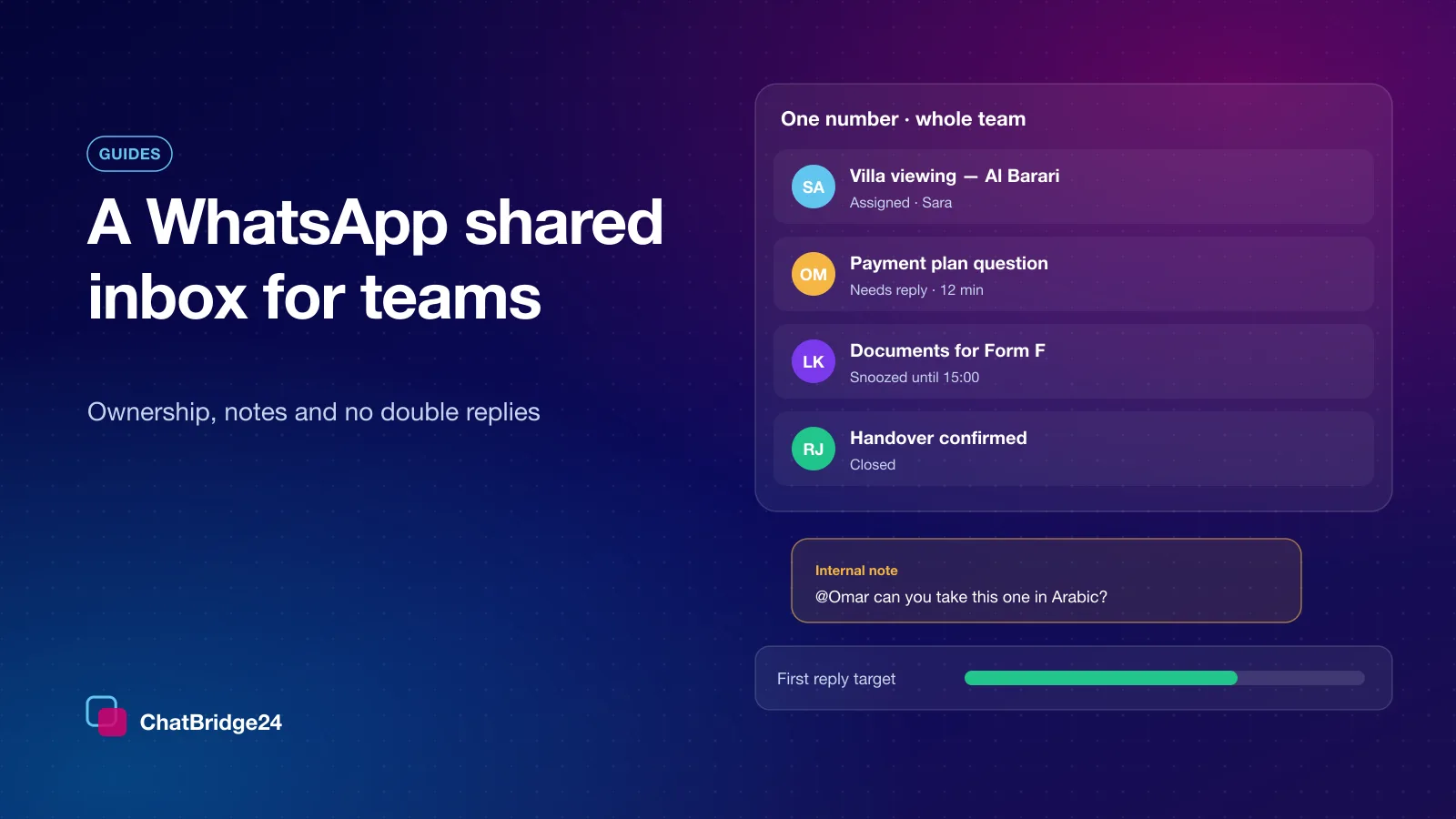
Once connected, the number behaves like any number in a WhatsApp shared inbox. Threads can be assigned so that one person owns each customer, colleagues can leave internal notes instead of second replies, and saved replies keep answers consistent.
The owner can still answer from the phone. The habit that keeps this tidy is simple: if you reply from the phone, assign the thread to yourself in the inbox, or leave a short note, so a colleague does not answer the same question a minute later. The inbox shows your phone reply as soon as it is sent, which helps, but a clear owner helps more.
A business without a CRM can run all of this from a standalone WhatsApp workspace; a business on Bitrix24 can do it from inside the CRM.
What it costs
There are two senders, so there are two prices. What you type in the WhatsApp Business app stays free, and it is not limited by the 24-hour customer service window.
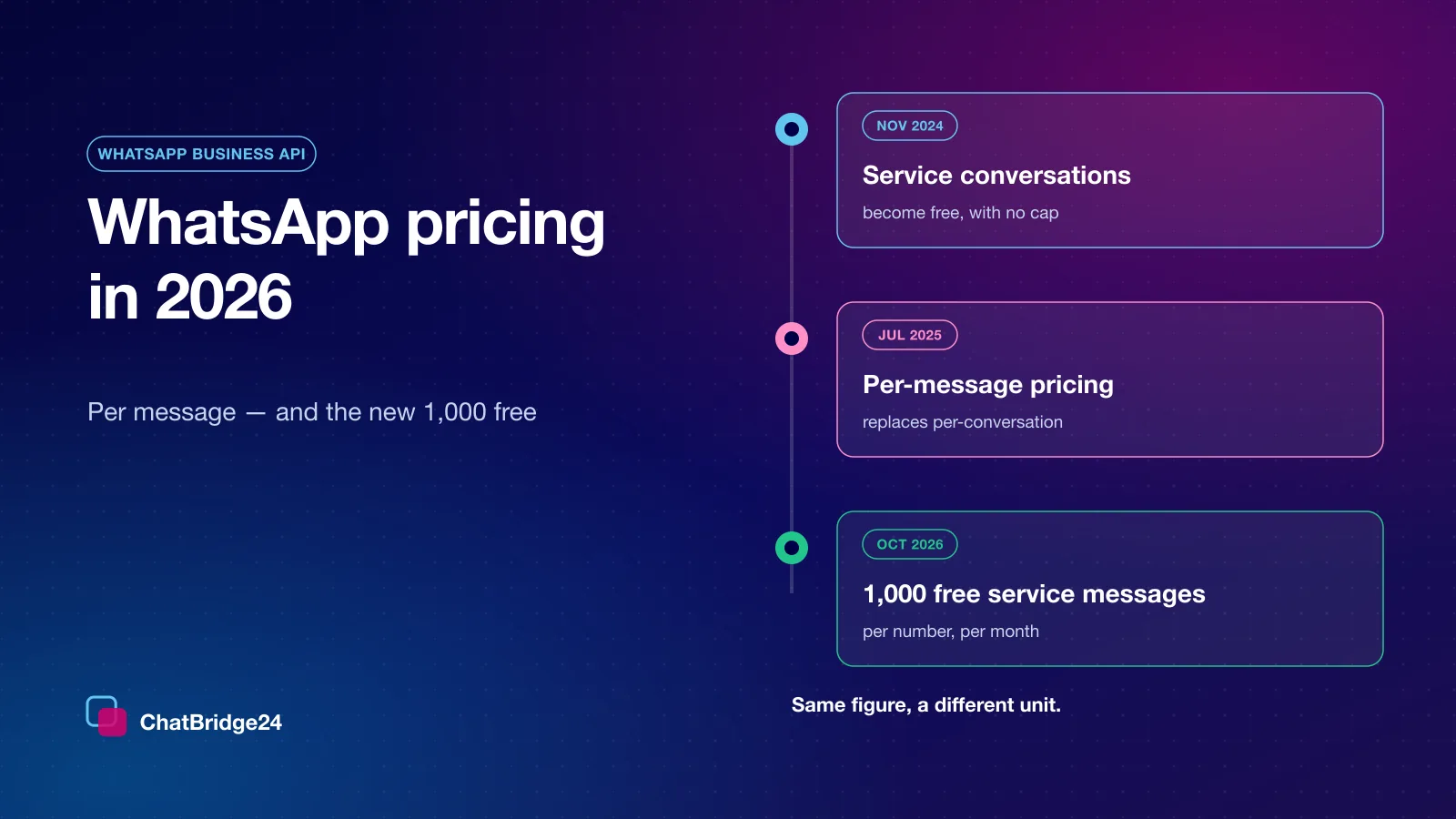
Messages sent from the team inbox go through the platform and Meta charges for them per delivered message, by category and by the customer’s country. Replies inside the 24-hour window are service messages: each number’s first 1,000 of them in a month are free, and Meta charges for the rest. The rules, and the dates they changed, are in WhatsApp Business API pricing. ChatBridge24 itself bills the number per month, like any other connected number, with no charge per colleague.
When a dedicated number is still the better choice
Coexistence is the right answer for most businesses that grew up on the app, but not all. A coexistence number has a fixed throughput of 20 messages a second, while a number on the platform alone starts at 80 and can grow. And it depends on one phone staying in use.
Choose a dedicated number on the platform alone when several people answer all day, campaigns and a chatbot send at volume, or nobody should depend on a single handset. Choose coexistence when the number is already known to your customers and the owner still wants the app.
A quick test after you connect
Before you tell the team, spend two minutes proving it works:
- Ask a colleague to message the number from their own phone. It should appear on the phone and in the inbox.
- Reply from the inbox. The reply should appear on the phone.
- Reply from the phone. It should appear in the inbox, marked as sent from the phone.
- Open an older conversation in the inbox and check that the history arrived.
If all four pass, the number is ready for the whole team — and the phone in your pocket still works exactly as it did this morning.
Common questions
Can I keep using the WhatsApp Business app after connecting the number?
Yes. With coexistence the number stays on the WhatsApp Business app and is connected to the platform as well. Messages sent and received are mirrored between the two.
Is my chat history imported?
If you allow it in the app, the most recent six months of one-to-one chats and your contacts are imported once, within 24 hours of connecting. Group chats are not synchronised.
Do messages I send from the phone cost anything?
No. Messages sent from the WhatsApp Business app stay free. Messages sent through the platform are charged by Meta per delivered message; replies inside the 24-hour window are service messages, and each number’s first 1,000 of those a month are free.
What can disconnect a coexistence number?
Not opening the WhatsApp Business app for about 14 days, re-registering the number on a new phone, or moving it to the ordinary WhatsApp app.
Last updated 24 October 2026.