Plan a WhatsApp campaign by asking for it
Tell the AI what you want to announce and to whom. It picks an approved template of the right number, your saved audience and a time, and opens the campaign in Marketing for you to check and start.
On this page
The idea for a campaign usually arrives in one sentence: “Let’s invite our investors to the Palm Residences launch on Monday morning.” Turning that sentence into a WhatsApp campaign takes ten decisions: which number sends it, which approved template fits, which list of people, what goes into each variable, when it goes out. Each decision lives on a different screen.
With ChatBridge24’s AI assistant, you write the sentence and it makes the decisions with you.
Ask for the campaign you want
When Create campaigns is switched on under Settings, AI agent, an administrator can open Ask AI from the top of any page and write the campaign as an idea:
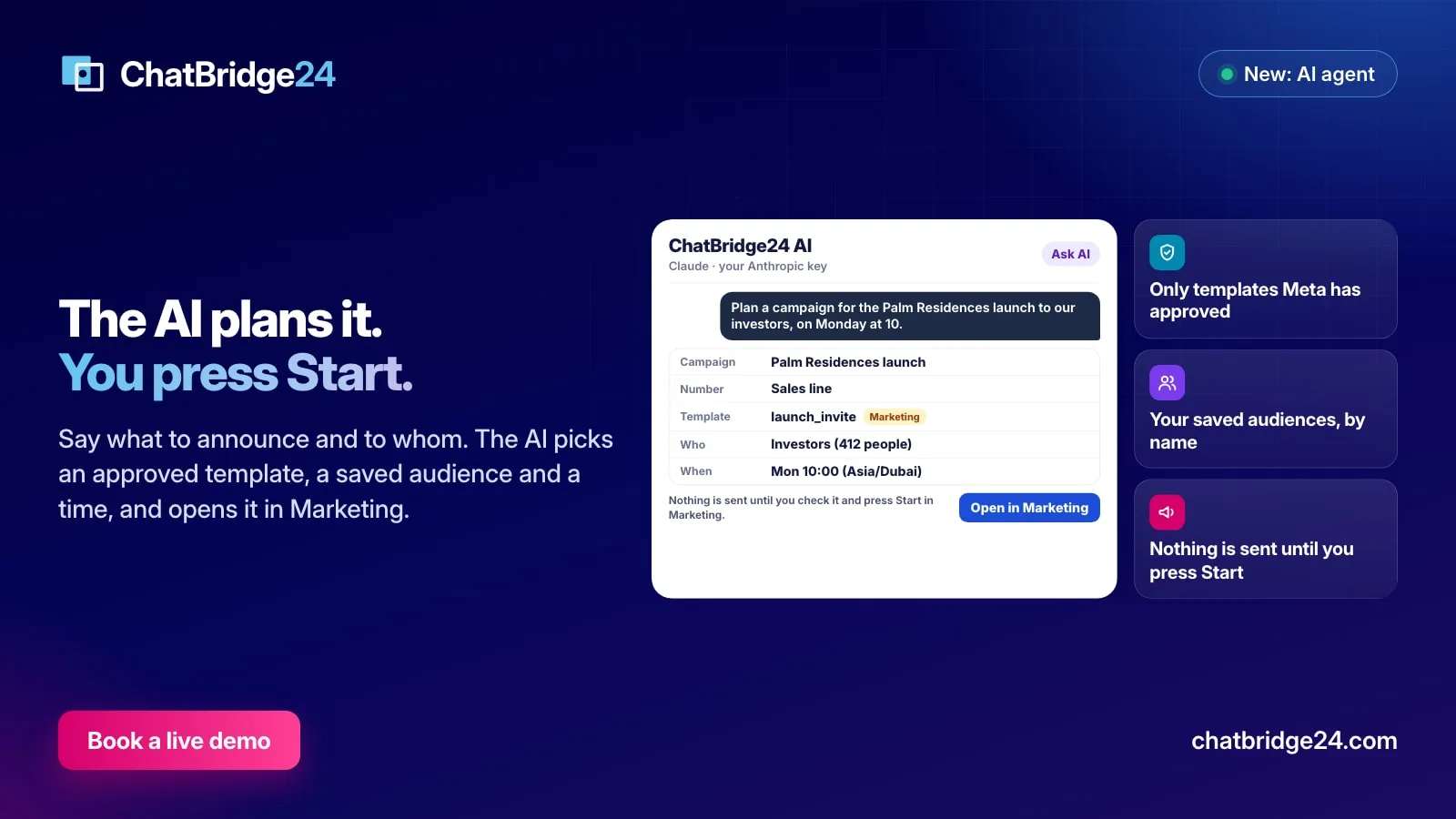
Plan a campaign for the Palm Residences launch to our investors on Monday at 10.
The assistant answers with a plan, shown as a card:
- Campaign: Palm Residences launch
- Number: the line it will send from
- Template: the approved template it chose, with its text
- Who: your saved audience Investors, and how many people are in it
- When: Monday 10:00, in your own time zone
Under the card, Open in Marketing does the rest.
It only uses what you have approved
A campaign can only start with one of your WhatsApp message templates that Meta has approved, so that is all the assistant may choose from: the approved templates of the number you send from. It never uses an authentication template, the kind reserved for login codes. If no approved template fits, it says so; you can then ask it to write one, review it in the template editor and submit it, and plan the campaign once Meta approves it.
The audience is chosen the same way: from your saved audiences, by name, with the number of people shown on the card. If you ask for “everyone labelled Hot lead”, the card names the labels and you pick them in Marketing’s audience step, where you can see exactly who is in the list.
Every name and number on the card is checked against your account before you see it. If the AI suggests a template, an audience or a number your account does not have, the plan is refused with a sentence saying why, instead of being shown.
It opens in Marketing, ready to check
Open in Marketing creates nothing and sends nothing. It opens the campaign composer you already use, with the plan filled in: the name, the number, the template and the send time, and the saved audience as the first source of recipients.
From there it is the normal flow. You check the values that go into each variable, see the audience report with every number that was removed and why, send yourself a test, and look at the cost, worked out from Meta’s per-message pricing. People who replied STOP and numbers you blocked are taken out as always, and your frequency cap still applies. Only when you press Start does the campaign begin, and from then on it behaves exactly like one you built by hand: the same pacing, the same send window, the same per-recipient results.
Why the AI plans and you press Start
A campaign is the one action in WhatsApp that cannot be taken back. Once a message is delivered to four thousand people, no button recalls it. That is why the assistant is built to propose and never to send. It saves you the ten decisions; it leaves you the one that matters.
The same principle runs through every part of the AI assistant. It plans a WhatsApp marketing campaign, it writes a template draft, it suggests a setting, and each time the last press is yours.
What the card tells you, line by line
Each line of the plan answers a question you would otherwise have to check yourself. The number line tells you which of your WhatsApp lines the customers will see the message from, which matters when your sales and support lines have different names. The template line shows the approved text itself, so you can read exactly what customers will receive before you open anything. The audience line gives the size of the list, which tells you at a glance whether the right list was chosen: an investors list of four hundred people and one of forty thousand are not the same campaign. The time line is read in your own time zone, the one you set with your working hours, so Monday at 10 means your Monday morning.
If any line is not what you meant, you do not need to start again. Reply in the panel, for example “use the other number” or “send it at 4 pm instead”, and the assistant prepares a new plan.
Make the most of it
A few habits give better plans:
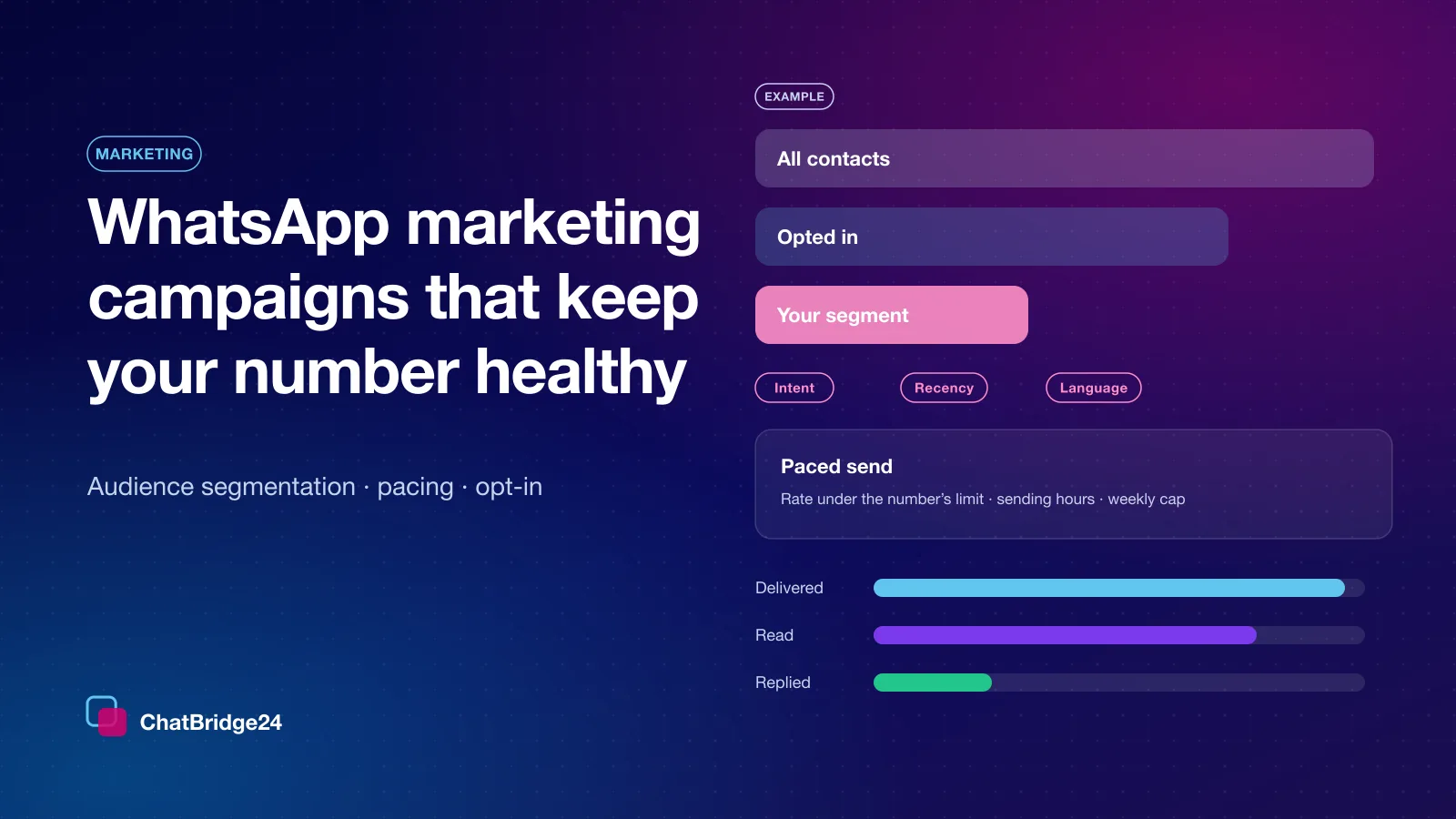
- Keep your saved audiences named clearly. “Investors, Dubai, 2026” is easier for the assistant, and for your team, than “List 3”. WhatsApp audience segmentation makes those lists once and reuses them.
- Name the number when you have more than one. “From the sales line” removes a guess.
- Give the time in your words. “Monday at 10” is read in your account’s time zone, which you set once in your working hours.
- Ask for a template first if you are announcing something new. Write, review and submit it; plan the campaign once Meta has approved it.
Where it fits
Campaigns run on the WhatsApp Business API, so planning one needs a number whose plan includes campaigns. If yours does not, the assistant tells you rather than planning something you cannot send. Each plan counts one AI action against the monthly limit you set, and it is listed under What the AI did. Planning works the same in the Bitrix24 app and in the standalone WhatsApp workspace.
ChatBridge24 is built by Saabsoft, an official Bitrix24 Dubai partner. Its Bitrix24 UAE team can help you plan your first campaigns and build your audiences, or you can book a live demo and plan one live.
Common questions
Will the AI send the campaign by itself?
No. It plans the campaign and opens it in Marketing with everything filled in. You check each step and press Start; until then nothing is sent and nothing is charged.
Which templates can it use?
Only templates Meta has approved for the number you send from, and never an authentication template. If you have no suitable template yet, ask it to write one first.
Which audiences can it choose?
Your saved audiences, by name. If you ask for people with a label, it names the labels and you pick them in the audience step.
Do I need a particular plan?
Campaigns must be included in the plan of the number you send from. If they are not, the assistant says so instead of planning one.