Test your WhatsApp bot before a customer sees it: draft, Test chat and publish
A bot that goes wrong goes wrong in front of customers. Here is how ChatBridge24 lets you build in a draft, try every path in the Test chat and publish only when the checks pass.
On this page
A WhatsApp bot works in public. When a website form breaks, a visitor sees an error message. When a bot breaks, a real customer gets a wrong answer on the number your business is known by, and you may not hear about it until the complaint arrives.
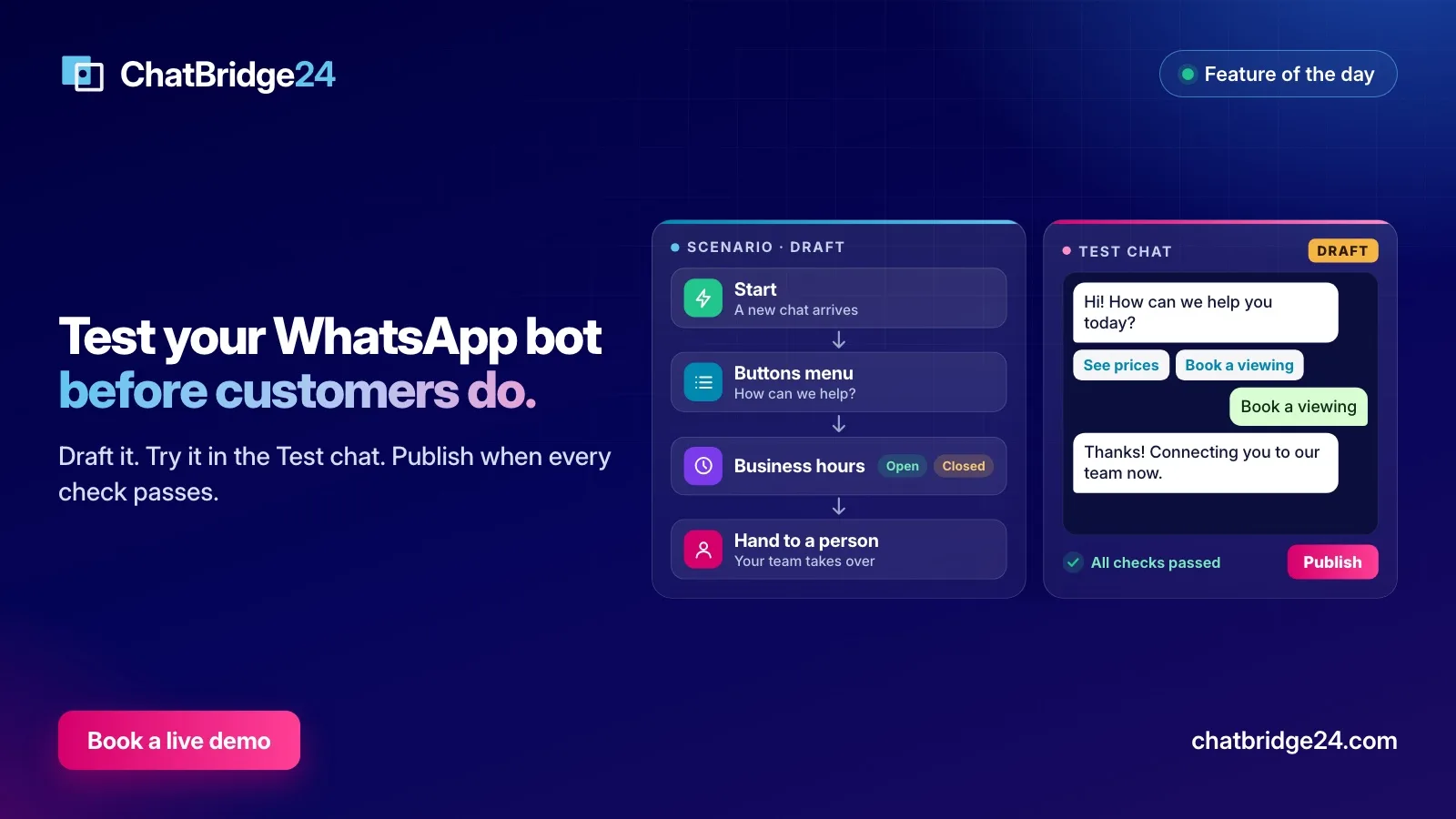
That is why the WhatsApp chatbot in ChatBridge24 separates building from publishing. You work on a draft, you try it in a Test chat that follows the live rules, and nothing reaches a customer until you publish it and switch it on. This article walks through the three stages and gives you a test routine you can run in about ten minutes.
Stage 1: build it as a draft
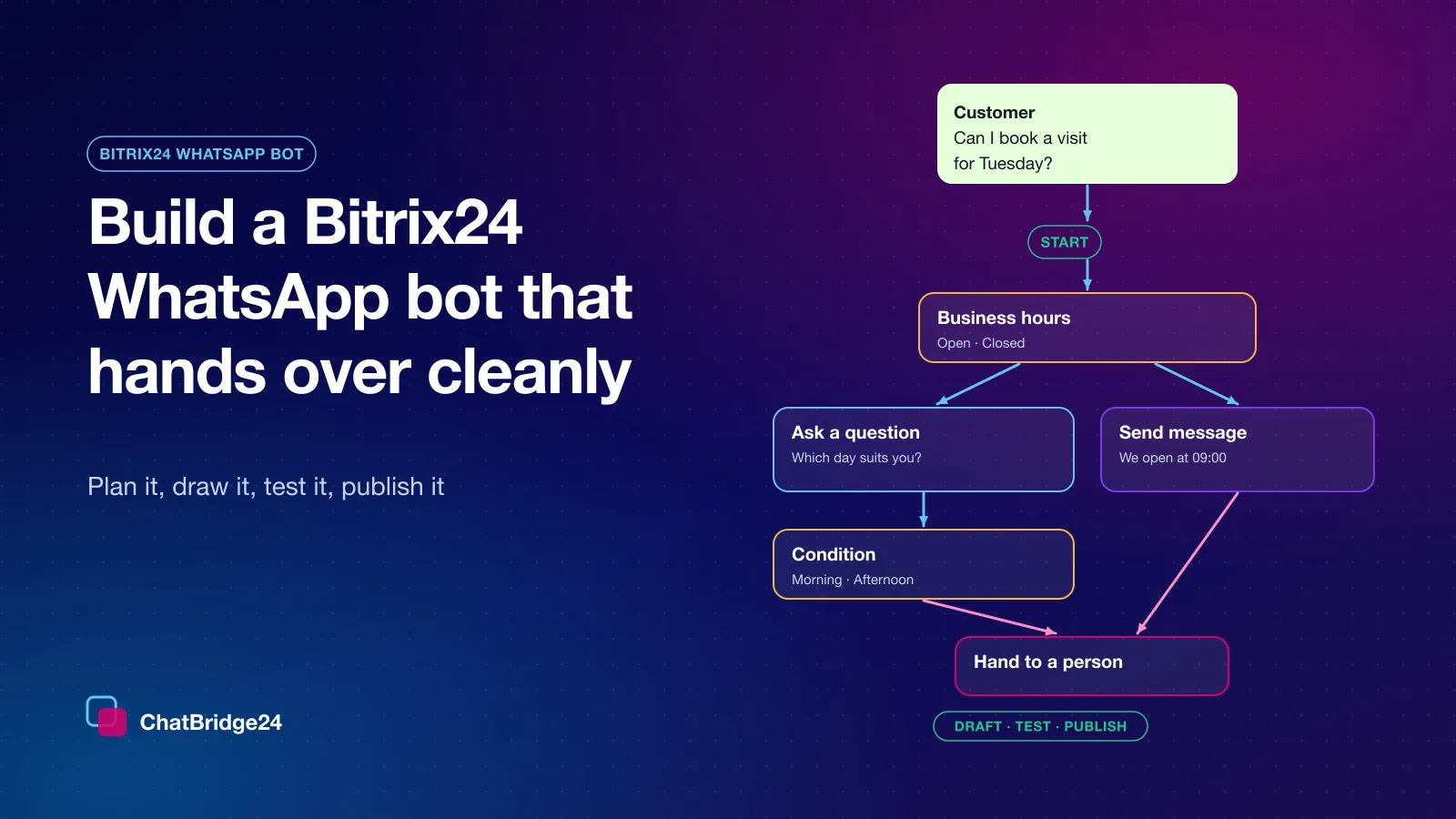
A scenario is drawn from blocks in four groups: Messages, Ask, Logic and Flow. You add blocks from the library, connect their paths and fill each one in its panel.
Saving keeps a draft. The version your customers meet does not change, so you can stop halfway through, come back tomorrow, and ask a colleague to read it in between.
Stage 2: try it in the Test chat
The Test chat is where you play the customer. You write to the scenario, tap its buttons and answer its questions, and it follows the same rules as the live bot.
Two things make it more useful than simply reading the flow:
- It shows its working. You can see which block answered and what each answer saved. When a reply looks wrong, you can see where it came from instead of guessing.
- It can pretend. You can test as a new contact, or as a contact who came from an ad, so a Condition block that depends on either one can be tried on both of its paths. It can also jump past a Wait, so you can read a reminder without sitting through the delay.
Nothing is sent to WhatsApp while you test, so nothing reaches a customer and nothing is charged.
Stage 3: publish when the checks pass
Publishing checks the whole scenario first and names the block to fix. It looks for problems such as:
- a path left unconnected;
- a loop that would keep sending without waiting for the customer;
- a template that is not approved.
A scenario with one of these problems cannot go live until it is fixed. That is the difference between a warning you might miss and a check you cannot skip.
Publishing also does not disturb anyone. A customer already in the middle of a conversation finishes it on the version they started, and new conversations get the new version. Every published version is kept, and any of them can be brought back as the draft if you change your mind.
A ten-minute test routine
Run this before you publish, and again after any large change:
- Walk the main path. Start as a new contact, choose the most common answer and go to the end. Read every message as a customer would.
- Tap every button. Try each reply button and list option once. A path that stops dead shows up here.
- Give wrong answers. Type words where the question wants a number or a date. A wrong answer is asked again in your words, up to five tries, so check that those words are friendly.
- Test from an ad. Switch on the option to test as a contact from an ad, if any block depends on it.
- Test after closing time. The Test chat reads your working hours and the current time, so run it once after hours and read what the Closed path says. It should tell the customer when you will answer.
- Reach a person. Make sure every path has a way to the Hand to a person block, so the chat can reach your team in the WhatsApp shared inbox. Nobody should be trapped in a menu.
- Stay silent. If a question sends a reminder after a silence, jump past the wait and read the reminder.
What protects you after publishing
Testing catches mistakes you can think of. The engine’s limits catch the rest:
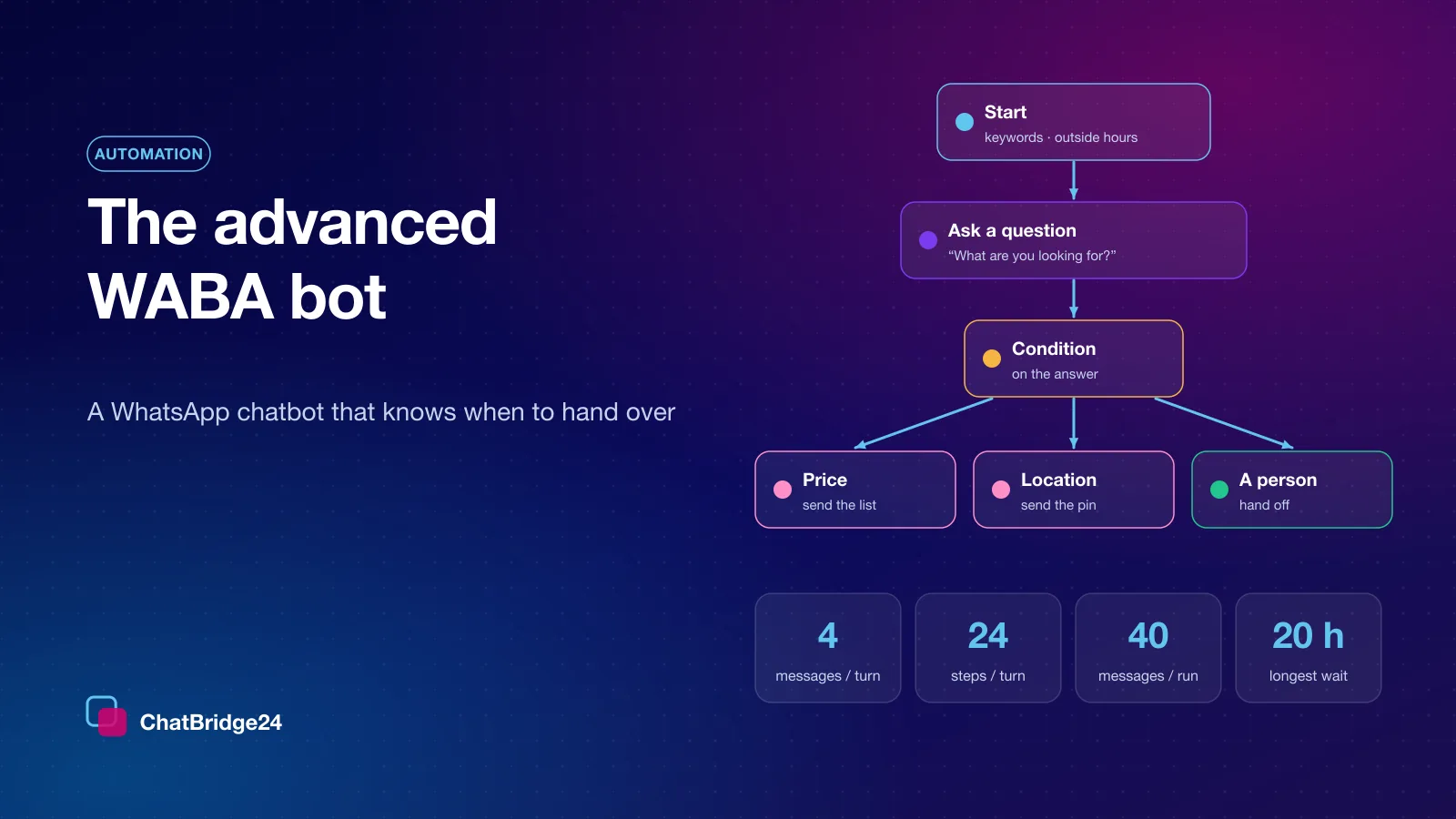
- A scenario sends at most four messages for each customer message, and forty each time it runs.
- A customer who opted out, or a contact your team blocked, never hears from the bot.
- A scenario does not start on a conversation one of your team has answered in the last 24 hours.
- Outside the 24-hour customer service window, only one of your approved WhatsApp message templates can be sent.
Where to find it
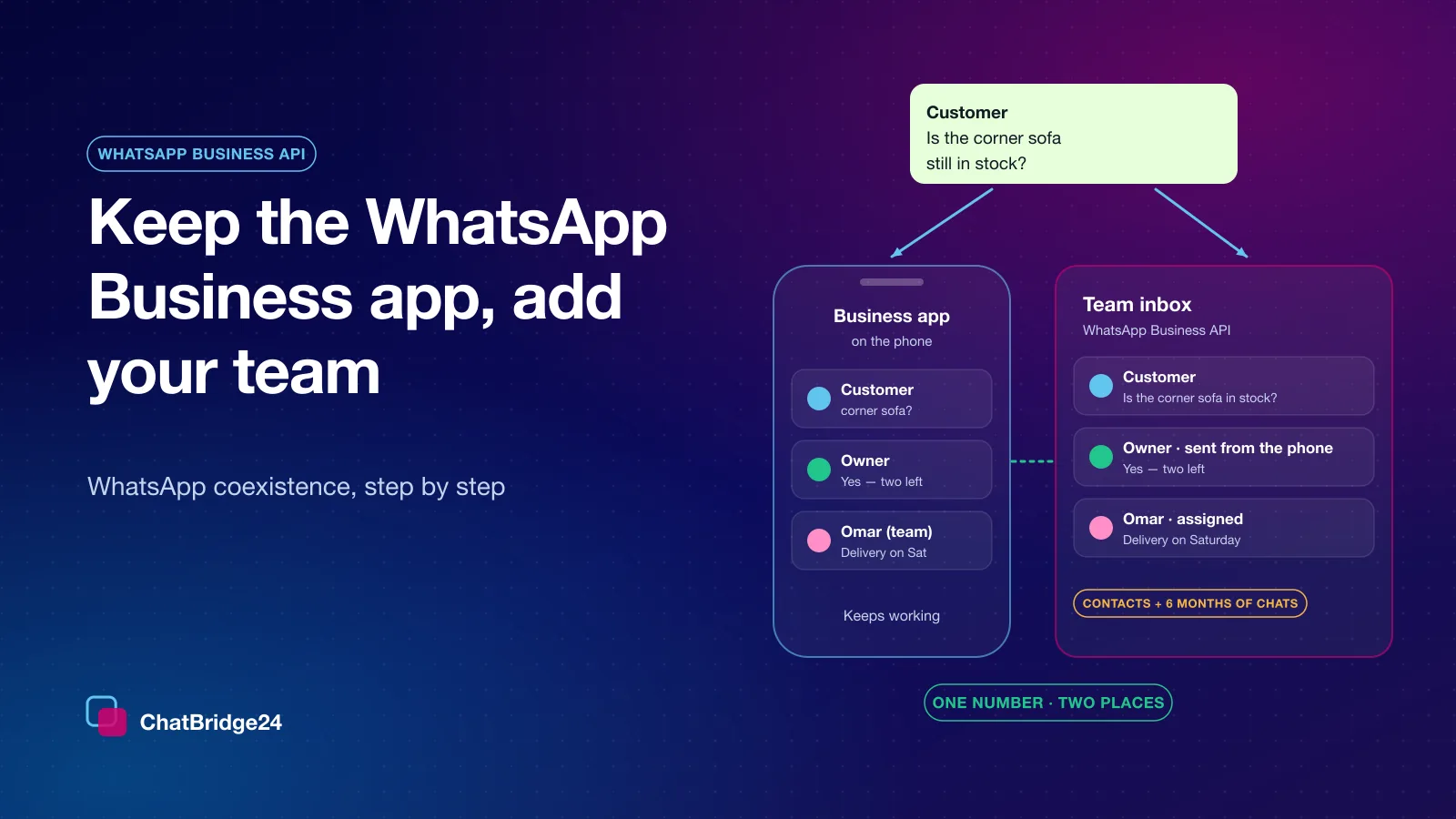
Scenarios run on numbers connected to the WhatsApp Business API, in the Professional and Enterprise plans (ChatBridge24 pricing). In Bitrix24, the same builder comes with the ChatBridge24 app on the Bitrix24 Marketplace, as the Bitrix24 WhatsApp bot.
To see what a finished scenario can do, read how an advanced WABA bot answers fast and hands over cleanly, or book a live demo.
If your team would rather not design the flow alone, ChatBridge24 is built by Saabsoft, an official Bitrix24 Dubai partner, and its Bitrix24 UAE team can plan the scenario with you as part of your CRM setup.
Common questions
Does the Test chat send real WhatsApp messages?
No. It runs inside the builder and follows the same rules as the live bot, so nothing reaches WhatsApp or a customer while you test.
What happens to customers in the middle of a conversation when I publish a new version?
They finish on the version they started. New conversations use the new version.
Can I go back to an earlier version?
Yes. Every published version is kept and can be brought back as the draft.
Which plans include the bot?
The bot is in the Professional and Enterprise plans, on numbers connected to the WhatsApp Business API.