Read and reply to WhatsApp inside the Bitrix24 CRM record
A tab on every lead, deal, contact and company card shows the customer's WhatsApp conversation, with a box to answer in. How it finds the right chat, what you can do there, and who can see it.
On this page
A deal rarely moves because of what is written in its fields. It moves because of a conversation: a question about the price, a photo of a document, a “yes, Tuesday works”. In most companies that conversation lives somewhere else, on a phone or in a separate chat window, and the deal only hears about it when somebody remembers to copy it across.
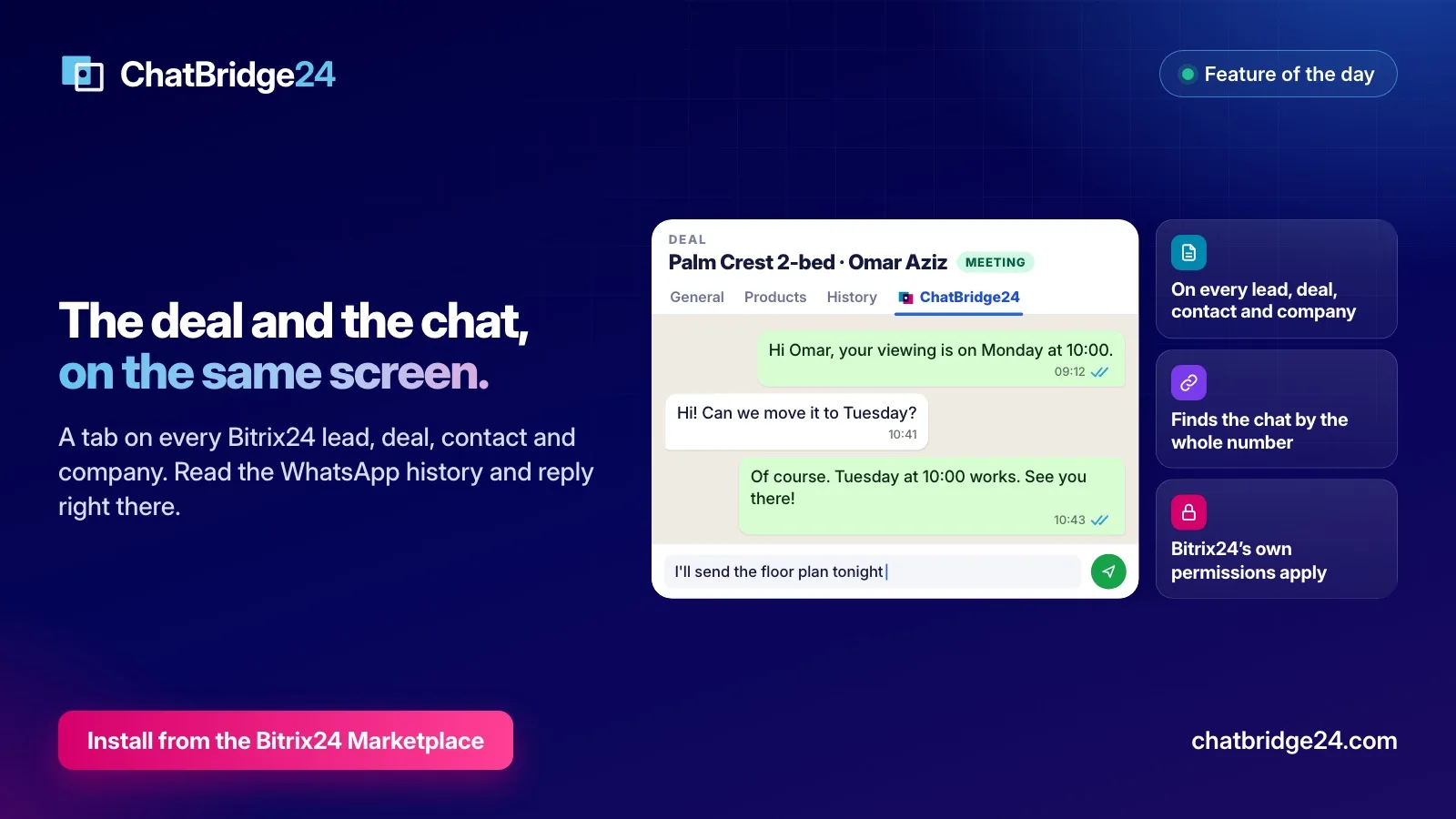
A good WhatsApp CRM integration closes that gap. In the Bitrix24 WhatsApp integration from ChatBridge24, it is a tab on the Lead, Deal, Contact and Company cards that shows the customer’s WhatsApp conversation, with a box to reply in. The salesperson reads the history and answers without leaving the record they are working on. Here is how it works, and how to get the most from it.
Where the tab appears
When an administrator installs the app from the Bitrix24 Marketplace, it places a tab called ChatBridge24 on four kinds of card: leads, deals, contacts and companies. Nobody has to configure it, and it sits beside the record’s own tabs.
Two details save support time later:
- It never appears twice. Before it adds the tab, the app reads what is already registered in your portal, and replaces an existing tab rather than adding a second one. The same check runs again after the app is updated.
- An administrator can take it away. The tabs can be removed in the app’s settings. The app treats that as a decision and does not put them back on its own.
How the tab finds the right conversation
The hard part of a CRM tab is not showing a chat. It is showing the right one. ChatBridge24 looks for the conversation in three ways, best evidence first:
- The Open Channels identifier. When a WhatsApp chat is filed onto a record through Open Channels, Bitrix24 stores an identifier on that record. It points at exactly one conversation, so it is tried first.
- A link saved earlier. Once a conversation has been matched to a record, the link is kept, so the next time the card opens there is nothing to search for.
- The whole phone number. The record’s phone numbers are compared with the complete WhatsApp number, never with its last few digits, so two customers whose numbers happen to end the same way are never mixed up.
A deal has no phone field of its own, so on a deal card the tab reads the contacts linked to the deal, starting with the primary contact, up to three of them. A company card checks the company’s own number and then up to three of its contacts.
When more than one conversation fits, for example a company with two people who both write to you, or one customer who has written to two of your numbers, the tab lists them with the number each came in on, and you choose. It does not guess.
What you can do inside the tab
The tab is not a read-only transcript. It is the same conversation window your team uses in the shared inbox, sized to fit the card:
- Read the whole thread, with photos, documents and voice notes, and load older messages as you scroll up.
- Reply. Inside the 24-hour customer service window you can type freely. Once it has closed, WhatsApp only accepts an approved template, so the composer offers your WhatsApp message templates and lets you fill their values in place.
- Talk to colleagues without the customer seeing it. Internal notes stay inside the thread, and saved replies keep the answers your team gives consistent.
- Keep it tidy. React to a message, forward it to another conversation, snooze the thread, or close it when the matter is finished.
If your company has several WhatsApp numbers, a “Send from” choice above the conversation lists them. A number that already holds this customer’s chat opens it; choosing another starts a new conversation from that number.
Starting a conversation from the record
Often the record exists before the conversation does: a lead from a web form, a contact a colleague added after a phone call. If the record has a phone number and nobody has chatted with that customer yet, the tab opens an empty conversation, ready to write.
Because the customer has not written to you in the last 24 hours, the first message on a WhatsApp Business API number has to be an approved template. Once they reply, the window is open and the conversation carries on normally, on the card and everywhere else.
If the record holds several phone numbers, the tab shows them all and you pick the one to write to. If it holds none, the tab says so and shows which numbers it searched, so “this customer never wrote to us” is never confused with “something is broken”.
Who can see what
The tab respects two sets of permissions, and both have to agree:
- Bitrix24’s. The record is read as the person who opened it, not as the app. If Bitrix24’s CRM permissions would not let that person open the lead, the tab does not show its conversation either.
- ChatBridge24’s. A WhatsApp number can belong to one colleague or be shared with the team. A conversation appears only if the person looking could reach the number it came in on. A manager also sees the conversations of their team.
The result is that putting WhatsApp on the record does not widen who can read it.
The tab and Open Channels do different jobs
Most teams use both, for different moments:
- Open Channels is the queue. New conversations arrive there, your routing rules choose who answers, and operators work through them in the Bitrix24 messenger.
- The tab is for working a record. The follow-up before a meeting, the reminder about a missing document, the reply to a question that came in on Sunday: the salesperson is already looking at the deal, and the conversation is right there.
You do not have to use Open Channels at all. Some teams answer from the tab and the app’s own inbox and never bind an Open Channel, and the tab works the same way for them.
Getting started
- Install the app from the Bitrix24 Marketplace. The tab is placed automatically.
- Connect a WhatsApp number through Meta’s own sign-up.
- If you use Open Channels, bind the number to one, so new conversations reach your existing queue.
- Open a lead whose customer has written to you. The conversation is already on the card.
The tab is part of every plan, with no connector fee and no charge per colleague; the details are on ChatBridge24 pricing. If you would like to see it on a real card first, book a live demo.
ChatBridge24 is built by Saabsoft, an official Bitrix24 Dubai partner. If you would like help arranging your pipelines, Open Channels and permissions around WhatsApp, its Bitrix24 UAE team can set it up with you.
Common questions
Which Bitrix24 records get the tab?
Leads, deals, contacts and companies. The app places the tab by itself when it is installed, and the tab is labelled ChatBridge24.
How does a deal find the right conversation?
A deal has no phone number of its own, so the tab reads the contacts linked to it, the primary contact first, up to three. A company card checks its own phone number and up to three of its contacts.
Can I write to a lead who has never messaged us?
Yes, if the record has a phone number. The tab opens a new conversation, and because the customer has not written in the last 24 hours, the first message on a WhatsApp Business API number is an approved template.
Will every colleague see every conversation?
No. Bitrix24's own CRM permissions decide who may open the record, and the conversation appears only for someone who can reach the WhatsApp number it came in on.