Answer WhatsApp customers from your phone: the ChatBridge24 phone layout
Your team's WhatsApp inbox, laid out for a phone: a tab bar at the bottom, chats that open full screen, and everything the computer can do one tap away. Where it works and how to use it.
On this page
A lot of customer conversations do not happen at a desk. The agent is at a viewing, the technician is on a site visit, the owner is between meetings, and the customer who wrote ten minutes ago is still waiting. Opening a desktop screen on a phone, with tiny buttons and a sidebar that takes half the width, is how replies get postponed until later, and later is often too late.
ChatBridge24 has a layout built for the phone. Below tablet width the whole app rearranges itself: a tab bar at the bottom, conversations that open full screen, and menus that rise from the bottom edge where your thumb already is. Here is where it works and how to use it.
Where you can use it
There is nothing extra to download:
- On the standalone WhatsApp workspace, open app.chatbridge24.com in your phone’s browser and sign in as usual.
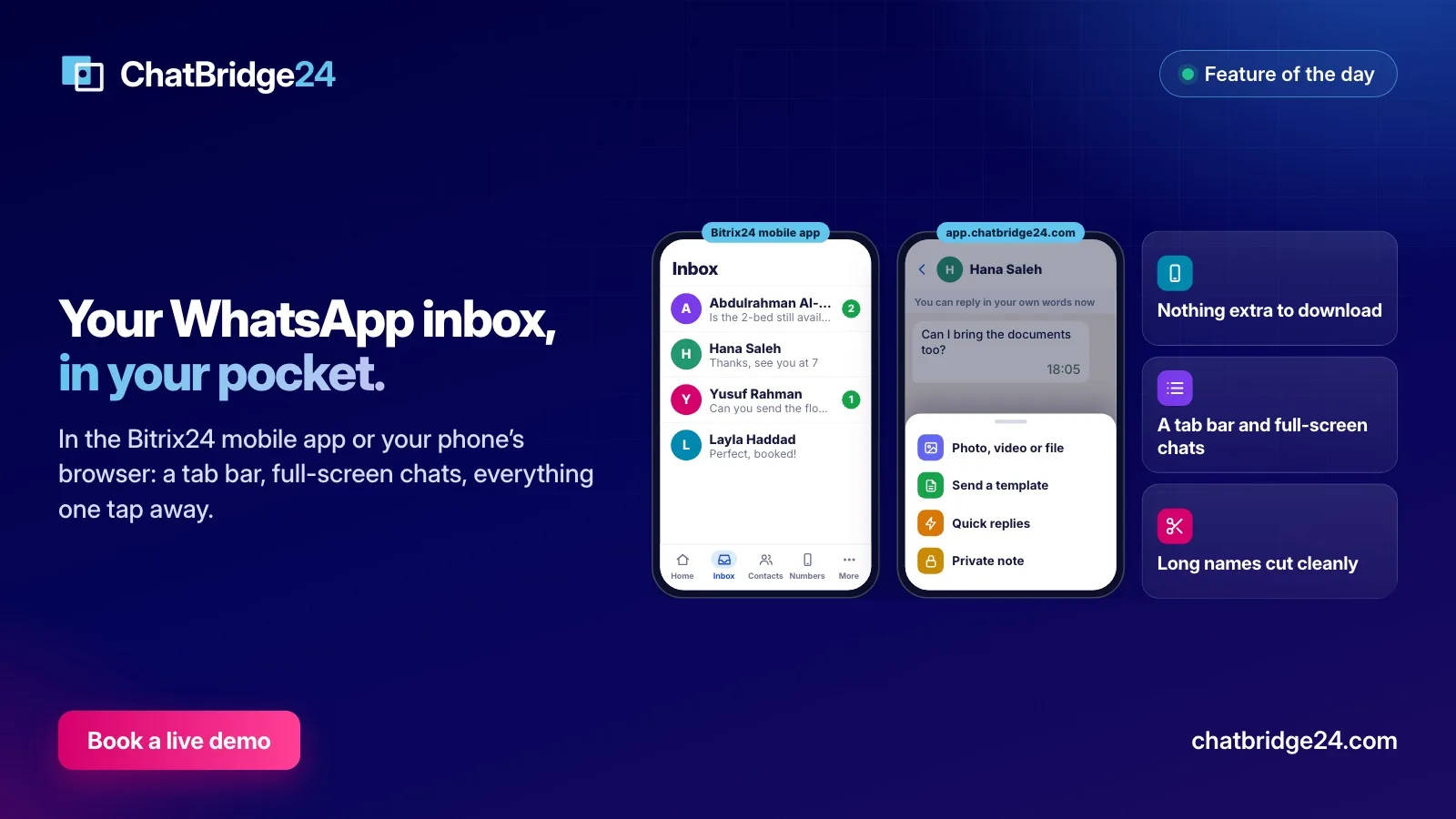
- In Bitrix24, open ChatBridge24 in the Bitrix24 mobile app. The same layout appears inside it, so a team that lives in Bitrix24 keeps working there.
Both show the same screens, so a colleague who uses one can help a colleague on the other.
The tab bar
Five tabs sit at the bottom of the screen:
- Home for the overview.
- Inbox, with a badge when conversations are waiting.
- Contacts for everyone who has written to your numbers.
- Numbers for your WhatsApp numbers and their status.
- More for everything else your role and plan include: the bot, marketing, settings, billing and the rest. On the workspace, More starts with your own account, where you change your settings or sign out.
The tabs come from the same menu as the computer’s sidebar, so a page your role cannot open on the computer does not appear on the phone either.
Working a conversation
The inbox is a list, as in WhatsApp itself. Tap a conversation and it opens full screen; the tab bar steps aside to give the messages the room, and the back arrow returns you to the list.
A few details make the small screen work:
- Press and hold a conversation in the list to open its menu without opening it: assign it, label it, pin it, snooze it or close it.
- Tap the customer’s name at the top to open their contact details, full screen, with the back arrow to return.
- The reply window is stated in a line, above the message box: you can reply in your own words until a given time, or, once the 24-hour window has closed, templates only.
The message box and the + menu
On a computer the message box has a row of tools around it. On a phone it is one line: the box, the send button and a +. The + opens a sheet with everything the computer offers:
- Photo, video or file
- Send a template, from your approved WhatsApp message templates
- Quick replies, the saved answers your team uses most
- Private note, for colleagues only
- Ask for location
- Ask for phone number, in conversations with a customer who writes from a WhatsApp username
Every item in the sheet is the same control the computer uses, with the same rules. A phone can do exactly what a computer can, and nothing more.
Menus, tables and long names
Three smaller changes do a lot of the work:
- Menus open as sheets from the bottom of the screen, with large rows that are easy to tap.
- Tables become cards. A list of numbers or templates shows one card per row instead of a table that scrolls sideways.
- Long names are cut cleanly with an ellipsis. A customer called “Abdulrahman Al-Mansoori, Palm Crest Residences, Building B” never pushes the buttons off the screen.
Text fields use a size that stops iPhones zooming in when you tap them, and the layout leaves room for the home indicator at the bottom of newer phones.
Habits for a team that answers on the move
The phone makes replying easy. These habits keep it orderly:
- Assign before you answer. One tap in the conversation’s menu tells your colleagues the customer is yours, so nobody else starts typing.
- Use private notes for the handover. “Called them from the site, sending photos tonight” saves the next person a guess.
- Keep quick replies short. Phone typing is slower, and the answers you give most often belong in quick replies, written once and used by everyone.
- Close what is finished. A closed conversation stops waiting for a reply, and it reopens by itself if the customer writes again.
- Never switch to a personal WhatsApp. The conversation belongs in the shared inbox, where the history stays with the business and the next colleague can see it.
Try it
The phone layout is part of every plan, in the Bitrix24 WhatsApp app and on the workspace. The quickest way to see it is a live demo: you message our number from your own phone, and we show you the other side. Plans and prices are on ChatBridge24 pricing.
If your sales team works in Bitrix24 and spends its days out of the office, Saabsoft, the official Bitrix24 Dubai partner behind ChatBridge24, can help its Bitrix24 UAE customers set up the mobile app, permissions and pipelines around it.
Common questions
Do I need to install a separate app?
No. On the standalone workspace you open app.chatbridge24.com in your phone's browser. If you work in Bitrix24, you open ChatBridge24 in the Bitrix24 mobile app. Both show the same phone layout.
Can I do everything on the phone that I can do on a computer?
The tools are the same: templates, quick replies, private notes, files, assignment, snooze and close. The phone layout arranges them differently and adds no extra permissions.
Can I send a template from my phone?
Yes. "Send a template" is in the + menu beside the message box. When the 24-hour window has closed, the conversation says so above the box.
What happens to long customer names?
They are cut cleanly with an ellipsis, so a long name never pushes the buttons off the screen.