Ask AI to set up your WhatsApp: labels, quick replies, hours and more
Ask the AI to create labels and quick replies, set your working hours, add ready-made bot scenarios, update your WhatsApp business profile or change when it answers. It shows exactly what will change, you confirm, and you can undo.
On this page
A new WhatsApp account is a list of small jobs. Labels so the team can sort chats. Quick replies for the ten questions everyone asks. Working hours, so the away message and the reports know when you are open. A business profile with your address and website. A bot that answers the basics. None of it is hard, but each lives on a different screen, and most teams put it off for weeks.
ChatBridge24’s AI assistant can now do it with you. You say what you want, it shows exactly what it would change, and nothing changes until you press the button.
Ask for it the way you would ask a colleague
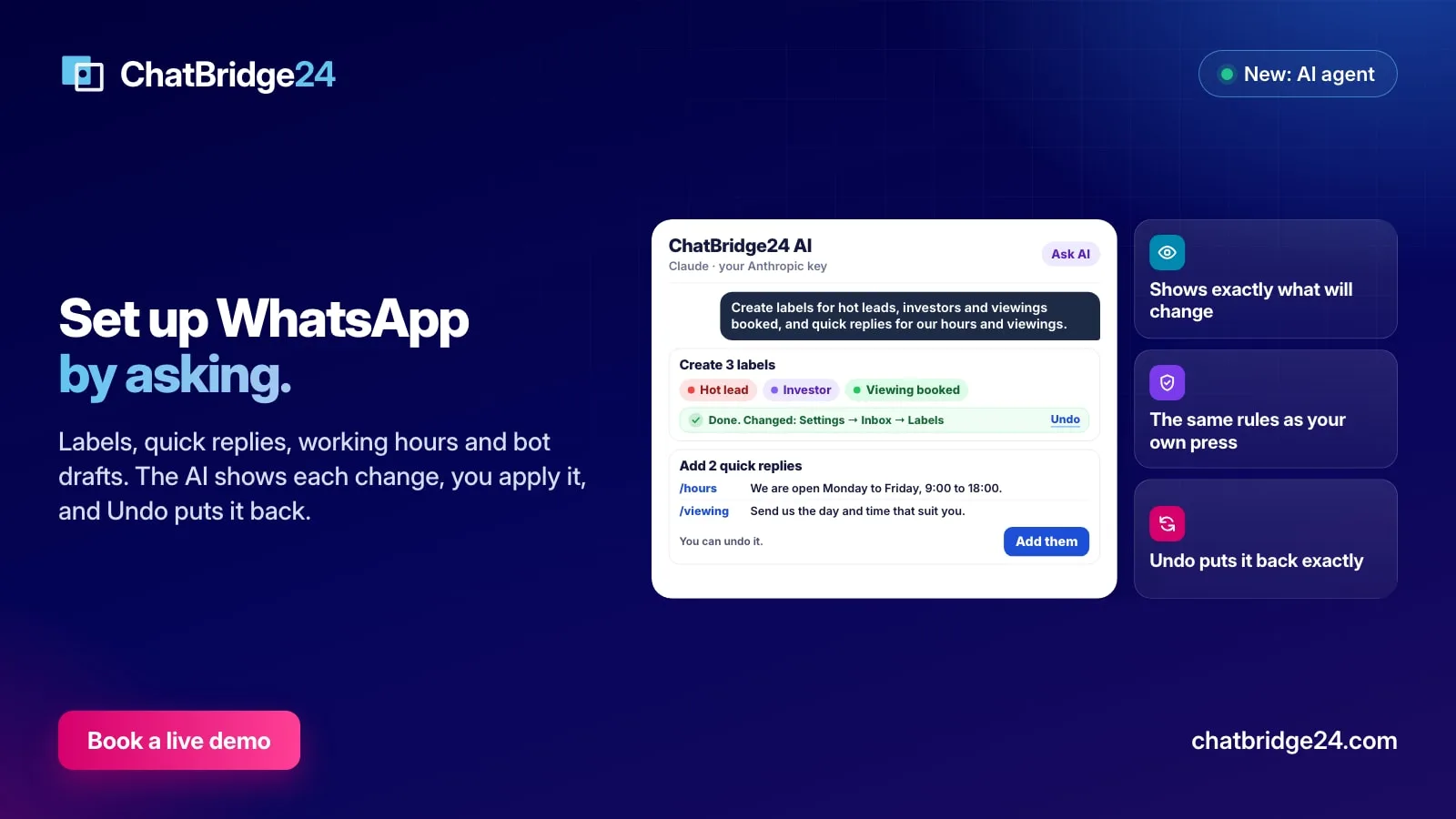
When Manage my WhatsApp setup is switched on under Settings, AI agent, an administrator can open Ask AI from the top of any page and write the job in plain words, in any language:
We are a real estate company. Create labels for hot leads, investors and viewings booked, and quick replies for our office hours, our address and how to book a viewing.
The assistant answers with a card for each change it proposes. Each card says, in plain words, what it would create or change.
What it can set up
Six kinds of change are within its reach:
- Labels. It proposes the names, leaves out any your account already has, even written with other capitals, and creates the rest.
- Quick replies. It writes the title and the text of each one, and gives each a shortcut your team types after a slash, such as /hours. It never reuses a shortcut you already have.
- Working hours. The opening and closing time for each day, and your time zone. Your away message keeps its own switch: the assistant sets the hours, and never turns the away message on or off.
- Ready-made bot scenarios. For your industry, it proposes the scenarios your number does not have yet, such as a welcome that qualifies the lead, viewing bookings or after-hours replies, and adds them as drafts. Nothing answers customers until you publish a scenario and switch it on in the WhatsApp chatbot builder.
- The business profile. The about line, description, email, websites and address that customers see on a WhatsApp Business API number, within Meta’s own lengths. Only the fields you ask about are touched.
- When the AI answers. “Answer customers yourself after 6 pm” becomes a card that switches answering on for the numbers you name, outside working hours.
You see the change before it happens
Every card is a proposal. A card for working hours lists each day with its hours; a card for quick replies shows each shortcut with its text; a card for the profile shows each field and its new value. The one button under it says what it does: Create them, Add them or Apply.
Before you see it, ChatBridge24 has already checked the proposal against your account. A day whose opening time is after its closing time, an email address that is not one, a website that is not a full address, or a number that is not yours is refused with a sentence saying why, and never shown as something you could apply.
It goes through the same rules as your own press
When you press the button, the change is made through the very same rules as the screen you would have used. If your account already has the maximum number of labels, or a setting needs an administrator, the change is refused exactly as it would be for you, and the card says so with a Try again button. There is no back door: the assistant can only do what you could have done yourself.
After the change, the card says Done and where the change was made, for example Settings, Inbox, Labels, so you know where to find it later.
Undo puts it back exactly
Each change can be undone from its own card. Before applying, ChatBridge24 reads what is there now, so Undo restores exactly that: it deletes the labels, quick replies or bot drafts it created, and puts back the previous hours, profile fields or AI settings. Every change and every undo is recorded under What the AI did, with who pressed it. Our WhatsApp data protection page lists your AI company among the services that receive data, with what it receives.
A setup in one afternoon
A typical first session looks like this:
- “Create labels for new lead, hot lead, viewing booked, offer made and closed.”
- “Add quick replies for our opening hours, our address, our payment plan and how to book a viewing.”
- “We are open Monday to Friday 9 to 6 and Saturday 10 to 2, Dubai time.”
- “Add the real estate bot scenarios to the sales number.”
- “Update the profile of the sales number: the about line, our website and our office address.”
Five sentences, five cards, five presses, and the WhatsApp shared inbox is ready for your team, in the Bitrix24 WhatsApp integration or the standalone WhatsApp workspace. Each request counts one AI action against the monthly limit you set.
ChatBridge24 is built by Saabsoft, an official Bitrix24 Dubai partner. Its Bitrix24 UAE team can run that first session with you, or you can book a live demo and set up a test account live.
Common questions
Does the AI change anything without asking?
Never. It shows a card with exactly what it would change. Nothing happens until you press the card's button, and the change then goes through the same rules as if you had made it yourself.
Can I undo a change?
Yes. Before applying, ChatBridge24 reads what is there now, so Undo puts back exactly what was there before: it deletes the labels, quick replies or bot drafts it created, and restores the hours, the profile or the AI settings it changed.
What can it set up?
Labels, quick replies, your working hours, ready-made bot scenarios as drafts, the business profile of a WhatsApp Business API number, and when the AI itself answers customers.
Who can use it?
Administrators, once Manage my WhatsApp setup is switched on under Settings, AI agent. Agents do not see the Ask AI button.